DocsFeatures
App analytics
See how people use your whole app, from the first open through onboarding and the paywall to the features they use, who comes back and who pays.
ASO work ends at the download; most analytics tools start at the first open. App analytics joins the two for your own apps: store downloads, first opens, every onboarding screen, the paywall, the trial and the first payment, and then how the app is used after that: the screens people visit, their sessions, the features they adopt, what they do next and who comes back. Everything can be split by app version, A/B variant and user property.
There is no SDK: your app sends events to a small HTTP API, and the setup guide gives you an AI prompt and copy-paste code for it. Payments can also arrive straight from RevenueCat, Adapty or Apple, see revenue integrations.
Open Analytics in the top navigation. Your apps are listed with their last 30 days; pick one to open its tabs.
The tabs
| Tab | What it answers |
|---|---|
| Overview | Active installs, new installs, onboarding and paid on top, then the views you pinned, see Overview and saved views |
| Funnels | Where installs leave: the onboarding funnel, Compare and your own funnels from any events |
| Retention | Who comes back on day 1, 3, 7, 14 and 30, after any event you choose |
| Activity | Daily, weekly and monthly active installs, sessions and screens, see Activity |
| Events | Every event with its adoption, a split by any prop and Paths ("what happens next") |
| Users | Find one install and read its timeline, see Users and timelines |
| Revenue | Paywalls, trials, payments and the health of each revenue source |
| Live (icon) | Events arriving right now, the place to check an integration |
| Setup (icon) | The App key, the AI prompt, code, collection, alerts and privacy labels |
Filters and segments
The filter bar sits under the tabs. The period goes up to a year: the last 7, 14, 30, 90, 180 or 365 days. Version is the version an install first opened, then platform (when the app sends more than one), country and experiment variant. The last two selects build a segment: installs with a user property set to a value (plan = pro), and installs that did or did not do an event (did habit_created). Segments narrow the funnels, Compare, retention, adoption, Paths and revenue. When a tab cannot apply a filter, for example the event counts of Events or the Activity lines, it says which ones it left out.
Funnels
The Onboarding funnel follows the installs first opened in the period through install, onboarding start, every step, onboarding complete, paywall, trial and paid. Each stage is a column with its share of installs on top and a line falling from left to right as installs leave. The line turns red where installs drop, deeper for the biggest drop, and green from the paywall on; the number at the bottom of a column is how many installs were lost on the way in. Hover a column for its installs, the share of the previous stage, the drop and the median time.
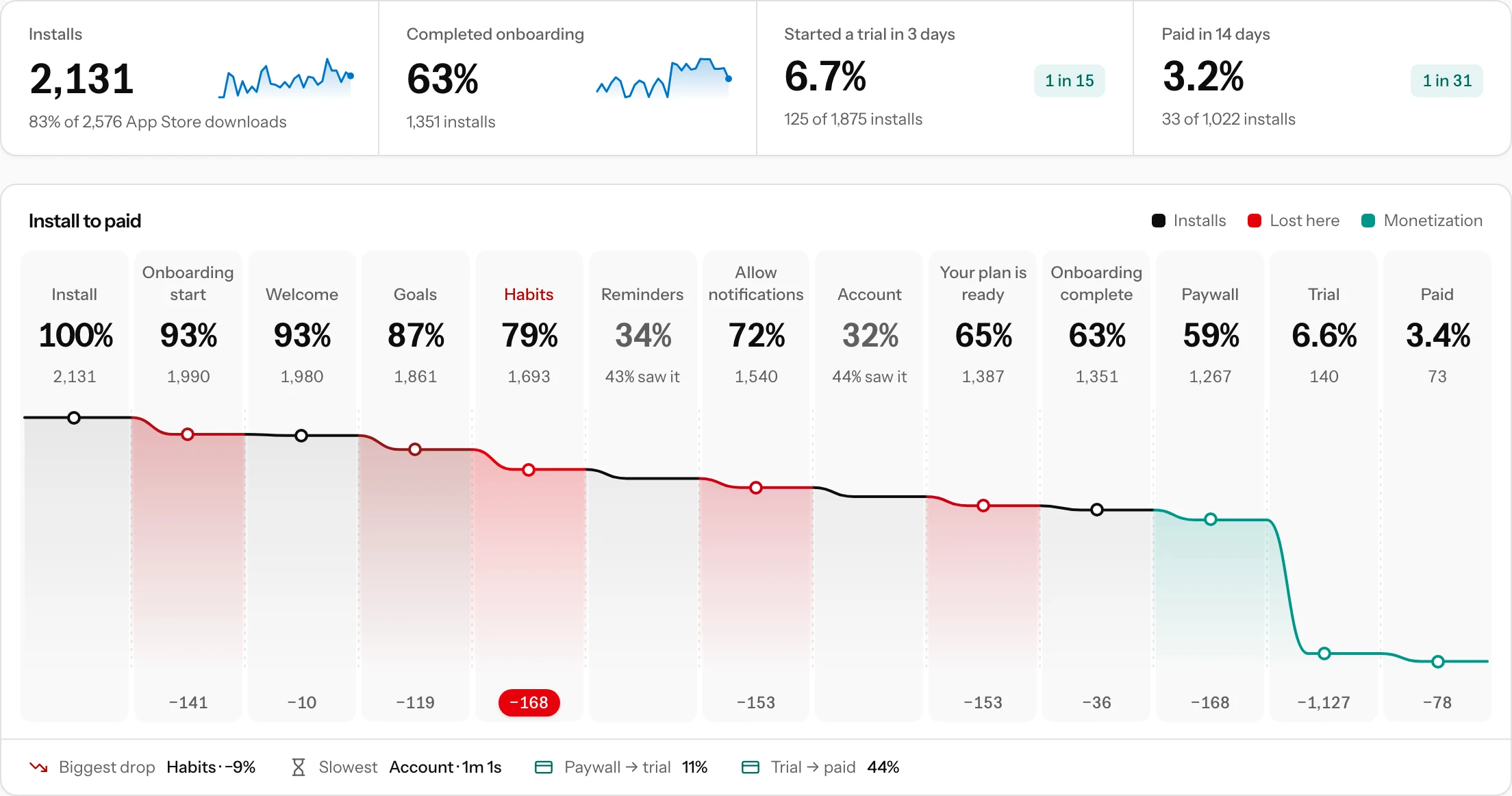
- Installs are first opens your app reported. With App Store Connect or Play Console connected, the panel on top compares them with store downloads for the same days. For a Mac App Store app that also has an iPhone version, those are the Mac downloads only.
- Optional steps. A step that later steps clearly outnumber (a screen only one variant shows) is greyed out with the share that saw it. It never counts as a drop.
- Conversion windows. Trial and paid on top are the fair rate: started a trial within 3 days of the first open, paid within 14 days, over the installs old enough to have had that time, with "1 in 28" to picture it.
One row under the chart points at the biggest drop, the slowest screen and how the paywall converts. Below it, the daily completion rate is drawn with markers for your releases and store listing changes. All numbers, step by step opens the full table.
Your own funnels
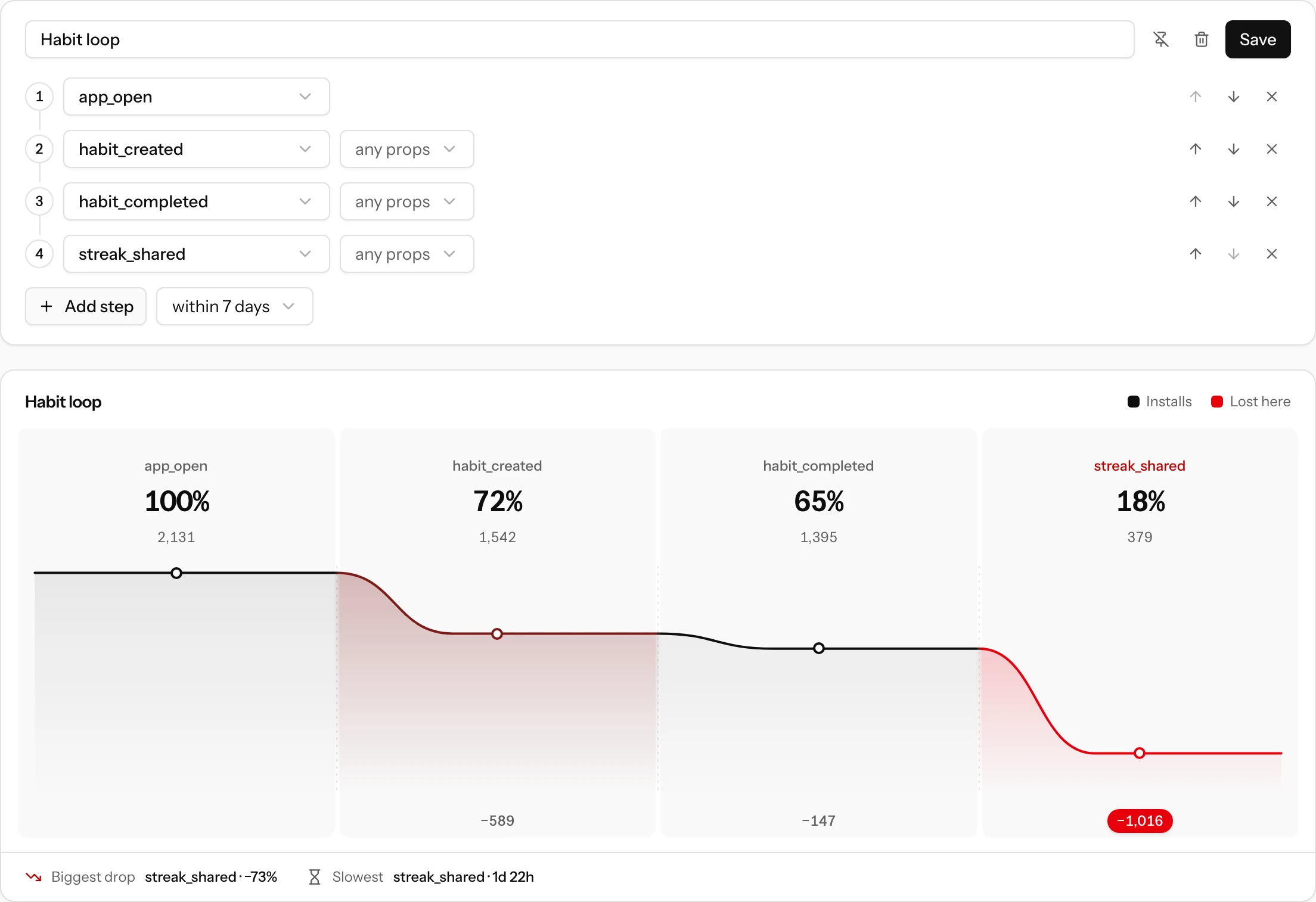
+ New funnel in the Funnels strip builds a funnel from any events your app sends: 2 to 8 steps, each an event with an optional prop condition (habit_created where template is water), and a window the whole path must fit in, from 1 hour to 30 days after the first step. The chart redraws as you edit; name it and press Save funnel to add it to the strip, and once it is saved its pin puts it on the Overview. A step with a prop condition is read from single events, which are kept for 30 days, so such a funnel covers at most the last 30 days and its window is at most 14 days.
Compare
Compare puts two groups side by side: two app versions, two variants of an experiment or two countries. Each metric is measured within its own window, onboarding completion within 1 day, trial within 3 days and paid within 14 days, and only installs old enough for that window count.
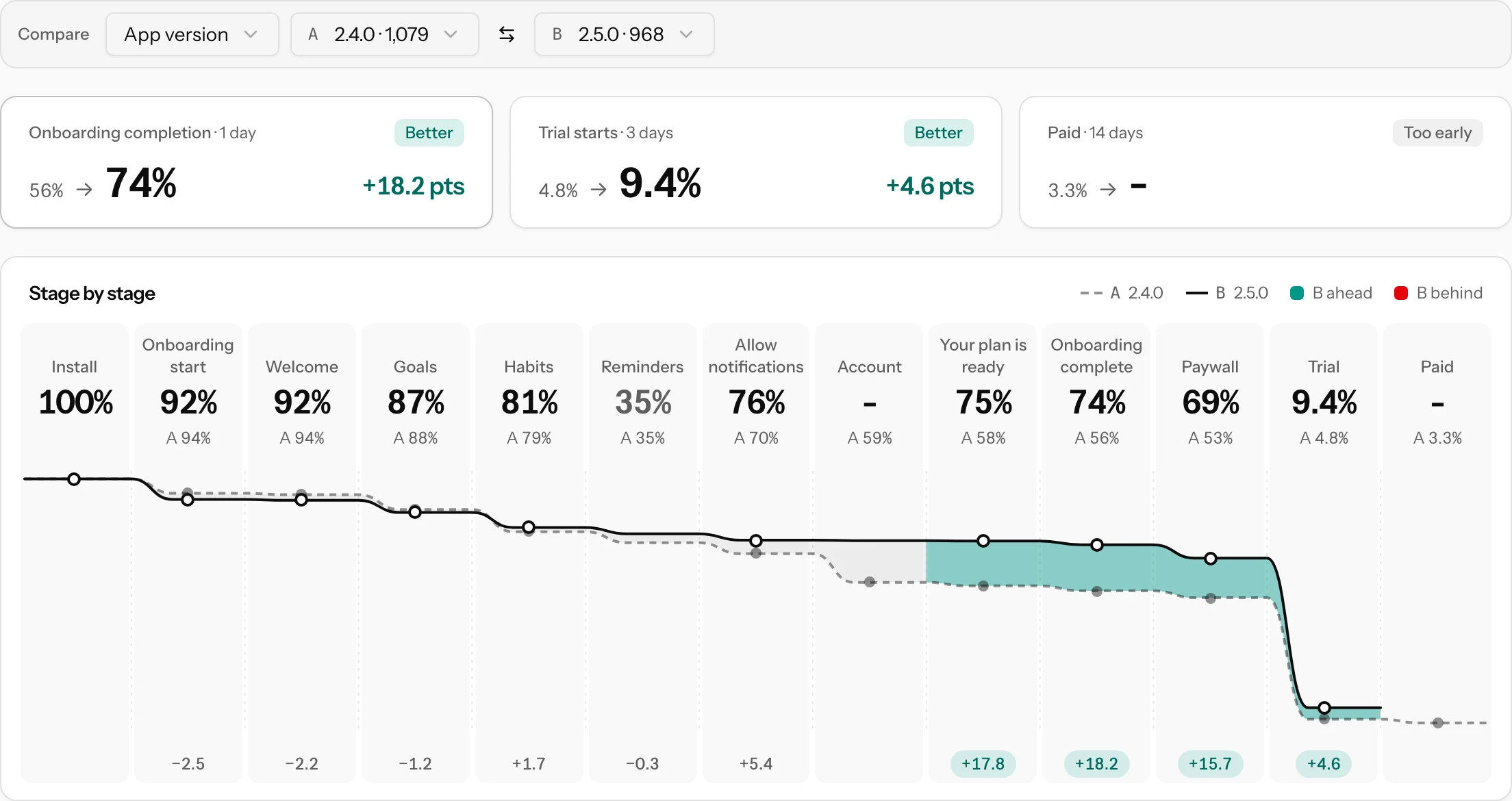
Each card shows both rates, the difference in points and a verdict; hover it for the range the difference most likely falls in. Better or Worse means B differs from A by more than chance would explain. Inconclusive means there is data but not enough evidence yet. Too early means fewer than 100 installs old enough on one side; the tooltip says what is missing. Under the cards, every stage is drawn for both groups, A dashed and B solid, the gap green where B is clearly ahead and red where it is behind.
Retention
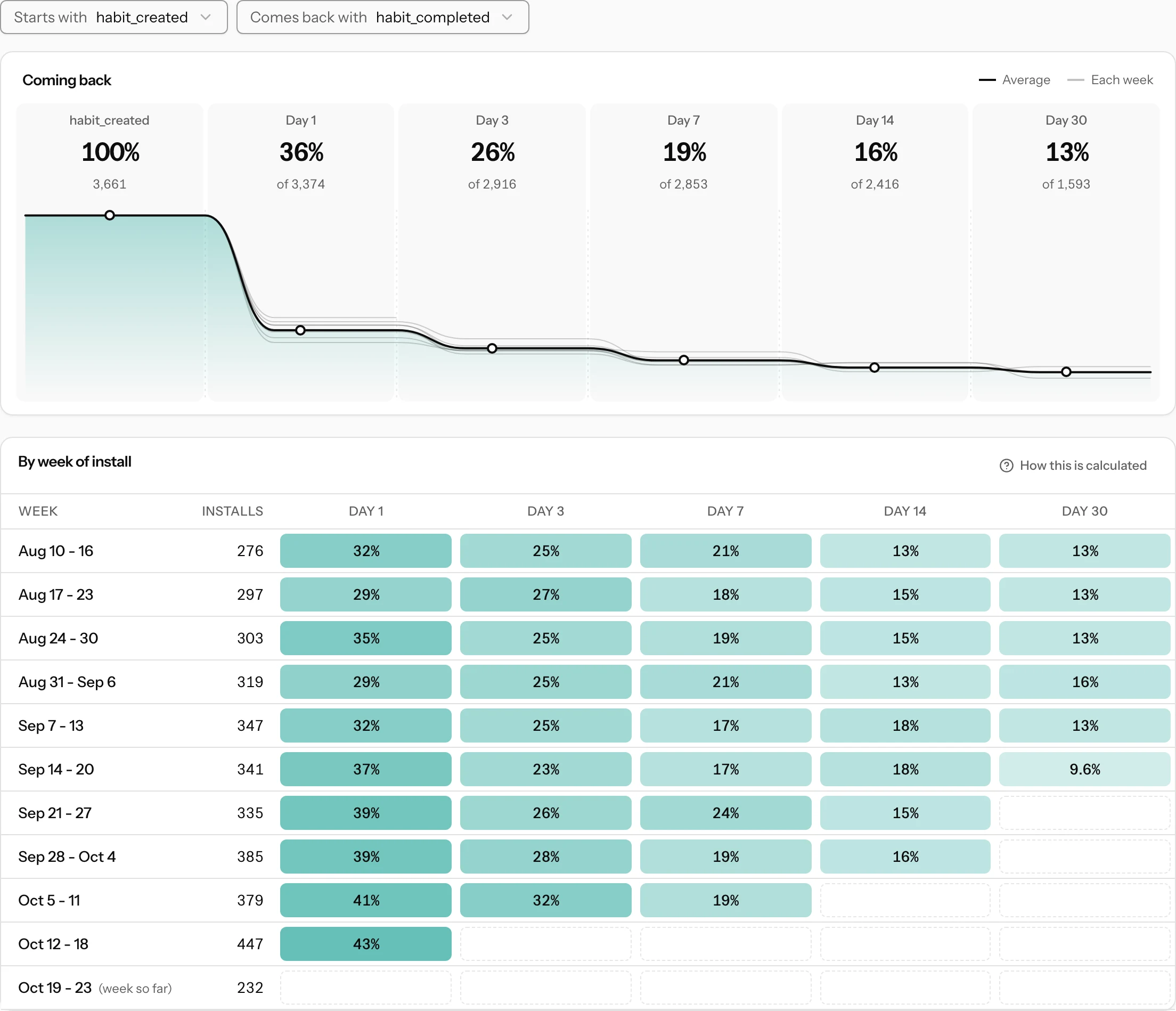
Retention shows the share of installs that came back on day 1, 3, 7, 14 and 30. Day 1 is the second 24 hours after the start, the same in every time zone. By default the start is the first open and coming back is any event. Starts with picks an event instead (retention of the installs that created a habit), and Comes back with counts only the installs that did a given event again. The curve pools every week that can already show a day, with recent weeks as faint lines; below it, each week of installs is a row of green cells, empty while that week is too young. The tab opens on the last 90 days.
Events
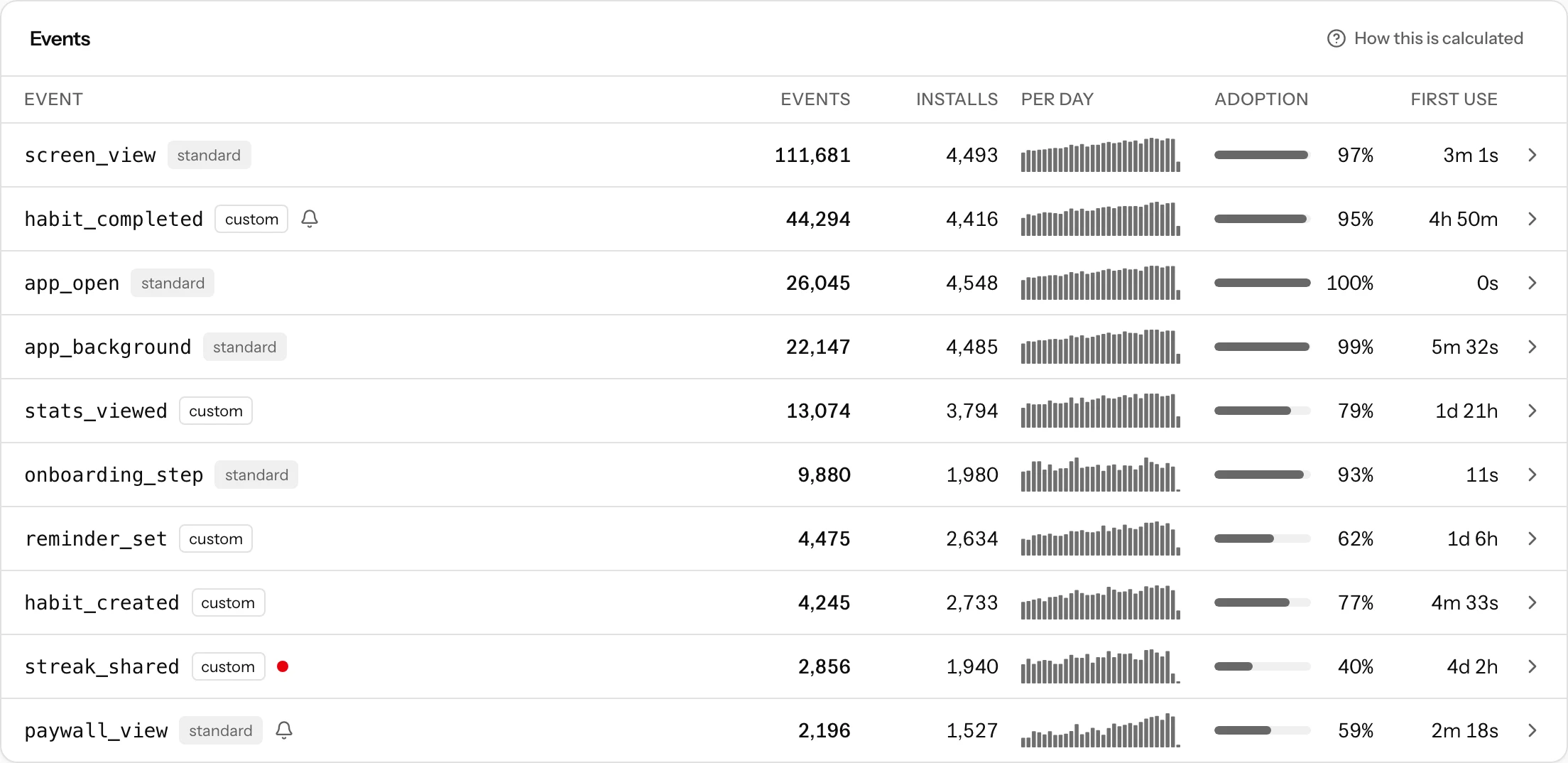
Every event name your app sends is listed with its events, installs, a bar per day, Adoption (the share of installs first seen in the period that ever did it) and First use (the median time from the first open to the first time). A bell marks an event with an alert rule, a red dot one that is firing.
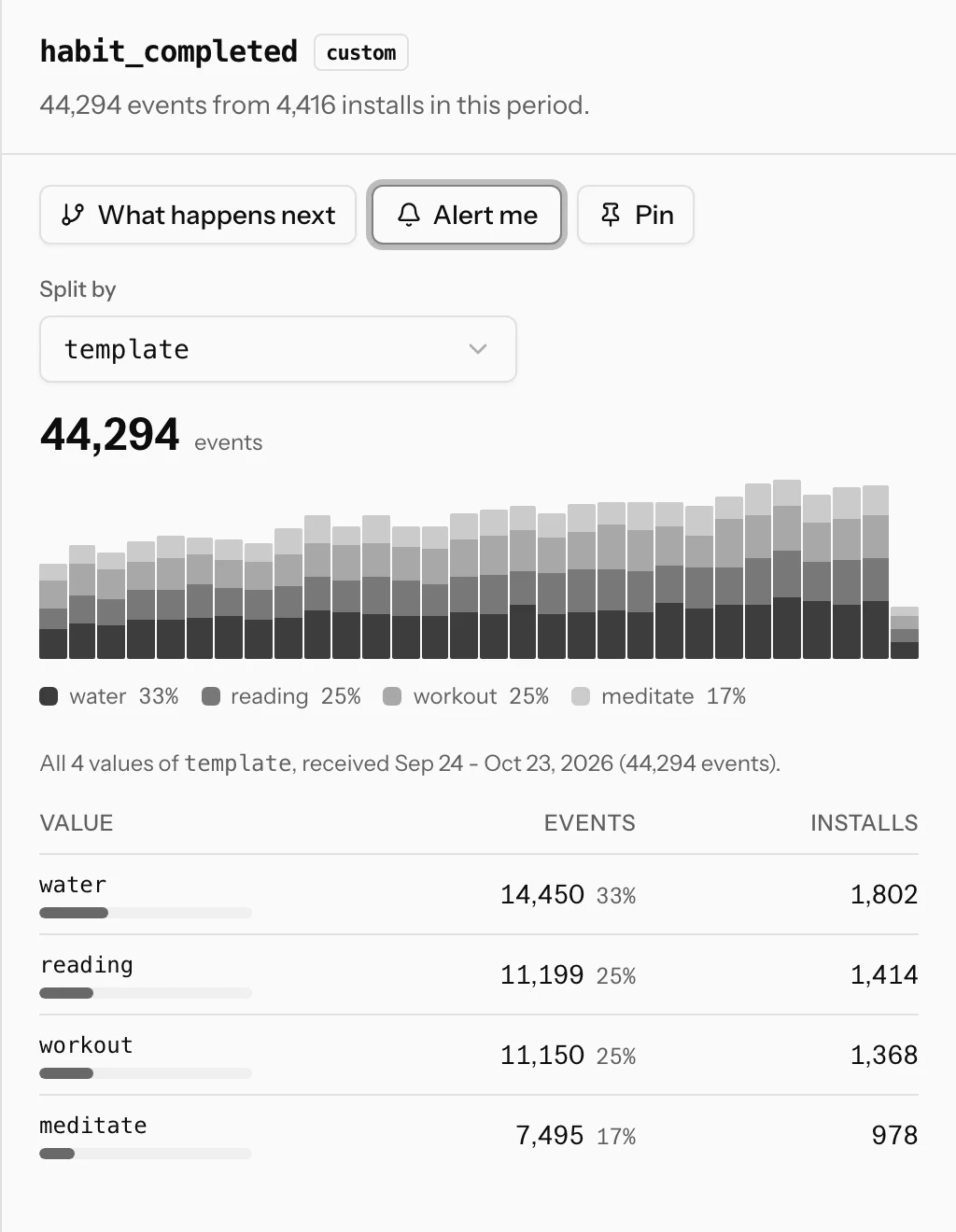
Click an event to open its drawer. Split by picks a prop and draws the period's events stacked by its top values, for as long as you have data, above a table of its top 20 values from the last 30 days. Pin puts that chart on the Overview, and Alert me sets an alert on the event.
What happens next
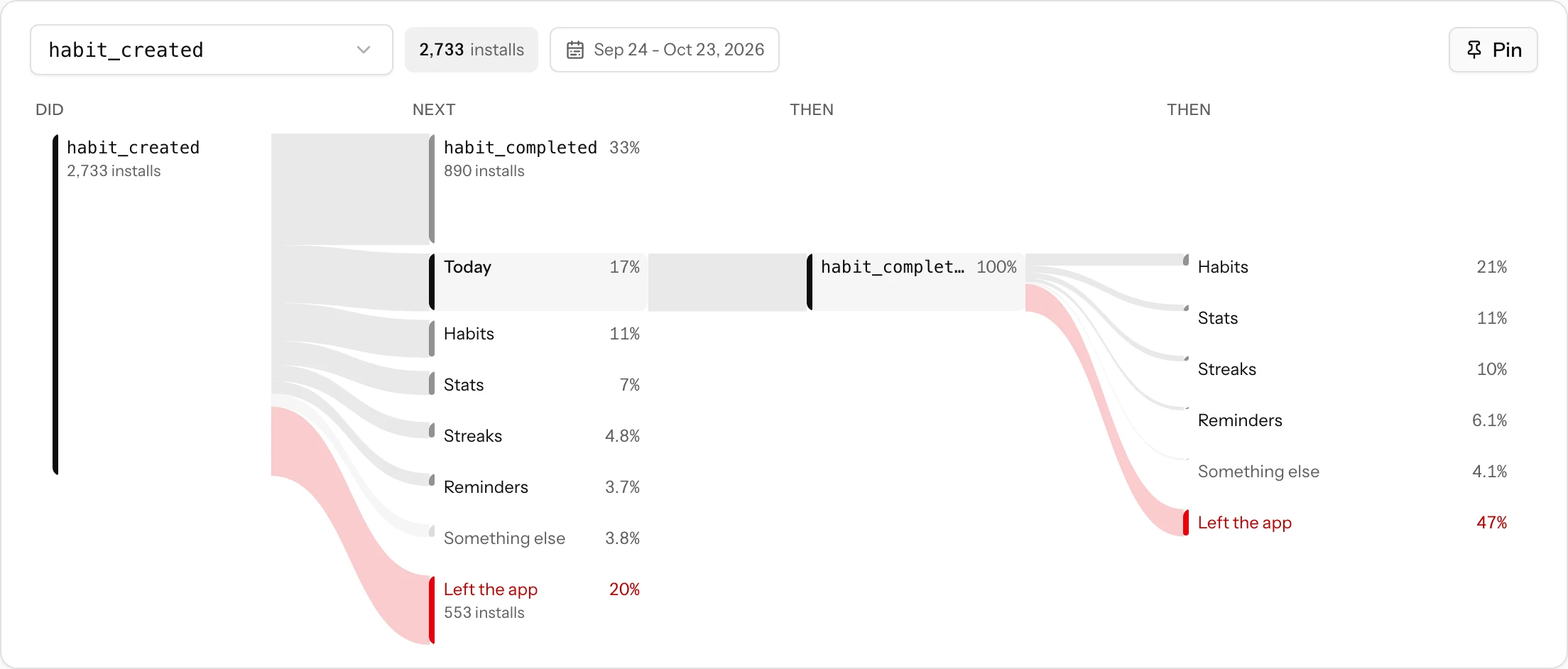
What happens next opens Paths for that event: what installs did right after it, then after that. Each branch is as wide as its share; screens show by name, rare branches fold into "Something else", and Left the app (in red) ends a path at the background or after 30 minutes without events. Click a branch to follow it. Paths are read from single events, so they cover the last 30 days.
Revenue
Each install is credited to the first paywall it saw. Per paywall, one bar shows the installs it was first for with the trials and payments inside it, the rates under it and the revenue on the right. Revenue sources shows the money from your app's own purchase events and from each connected provider, with each webhook's health.
Live
Live refreshes every 5 seconds: a pulse of the last few minutes, the installs moving through the app right now as rows of chips (click one for its timeline) and the newest 100 events, debug builds included. Anything the server turned away or trimmed is counted on one line with the reasons a click away, see the setup guide.
Limits, sampling and the hard cap
Your plan includes 1,000,000 events a month across all your apps. If you need more, add packs of 1,000,000 events a month under Settings → Billing: $8 for the first pack, $6 each for the 2nd to 5th, $5 for the 6th to 10th, $4 for the 11th to 25th and $3.50 from the 26th, up to 100 packs (prices). You are never billed for overage: the allowance is a hard cap, so a bug in your app or a leaked key can never run up a bill. At the cap your apps pause sending until the 1st of next month or until you add a pack, and a banner says so.
Before that, sampling keeps you inside the allowance: when this month's usage, projected to its end, would pass it, only a share of new installs is collected (say 40%), while installs already collected keep sending, so every path stays complete. Counts are scaled back up, each tab says "sampled at 40%", and a new month starts unsampled. An app's Setup tab can fix the share or turn sampling off.
Two more limits protect your data from a runaway loop: 500 events per install per day and 100 distinct event names per app (the standard events never count against it). Daily counts and each install's summary are kept for good; single events, which the timeline, Paths and prop splits read, are kept for 30 days. What happens to analytics when your plan ends is in plans and billing.
Alerts
ASO Atlas watches each app and emails you when something needs a look:
- Events stopped: an app that sent at least 50 events a day sent none for 24 hours, usually a new build that broke the integration.
- New version worse: a new version completes onboarding or starts trials clearly less often than the version before it.
- Unusual spike: far more new installs in a day than usual. If you did not launch or get featured, issue a new App key.
- Allowance: at 80% and 100% of the month's events.
You can add your own rules on any event (drop, spike or stopped), see alerts. Turn the emails off under Settings → Notifications → Analytics alerts. If the app has a feedback webhook, the same alerts go there too, see the feedback API.
From your AI assistant and your inbox
A connected AI assistant can read every tab, run any funnel, read one user's timeline, save views and alert rules, set analytics up and delete a user's data. And when a user writes through in-app feedback from an app that sends the same install id, the conversation shows their onboarding path with a link to their timeline.