DocsFeatures
Google Play keywords and apps
Research Google Play keywords, track your Android app's rankings, optimize the listing and link Play Console, and why Play demand is a band.
ASO Atlas works for Google Play as well as the App Store. Every part you know from the App Store side has a Google Play version: keyword research, rank tracking, competitors, the metadata optimizer, reverse lookup and keyword lists. Switch between the two stores with the App Store / Google Play control next to the country picker.
A few things work differently on Google Play, because the store itself works differently. This article covers them.
Demand is a band, not a number
On the App Store you see a popularity score from 0 to 100. On Google Play you see a demand band instead: five bars and a word, from Very low to Very high.
Google does not publish search volume for Google Play, anywhere. Every number you have seen for Play keywords, in any tool, is an estimate. We estimate demand from Google Play search signals too, and we show it as a band on purpose: a number like "57" would suggest a precision nobody has, and it would look comparable to the App Store's score when it is not.
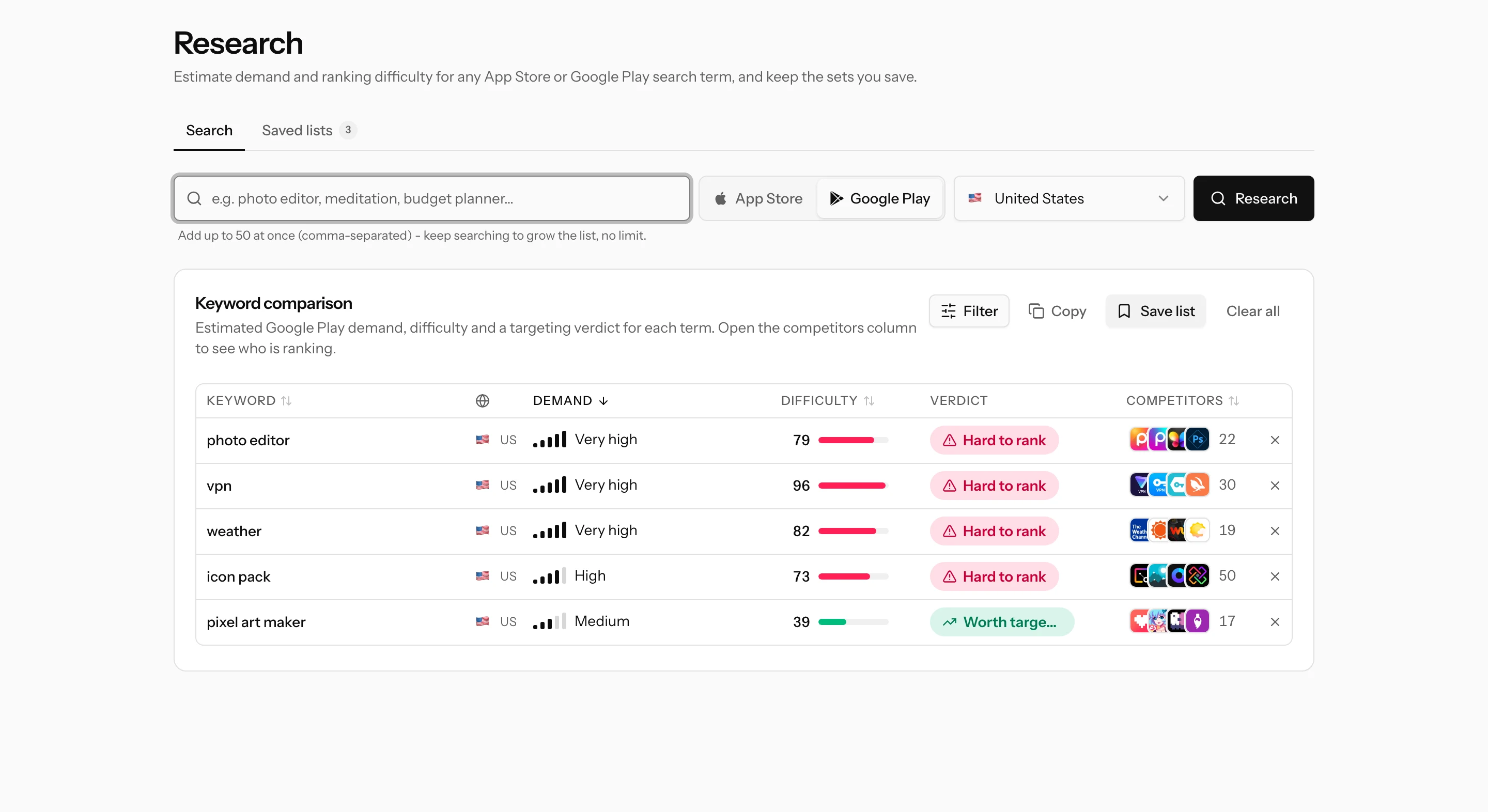
The band still does its job. Sorting, filtering and the verdict all read it, so "Low demand" and "Strong opportunity" mean the same thing on both stores. Difficulty works like it does on the App Store, except that it weighs your competitors by their installs rather than their rating counts. See Keyword difficulty.
Tracking a Google Play app
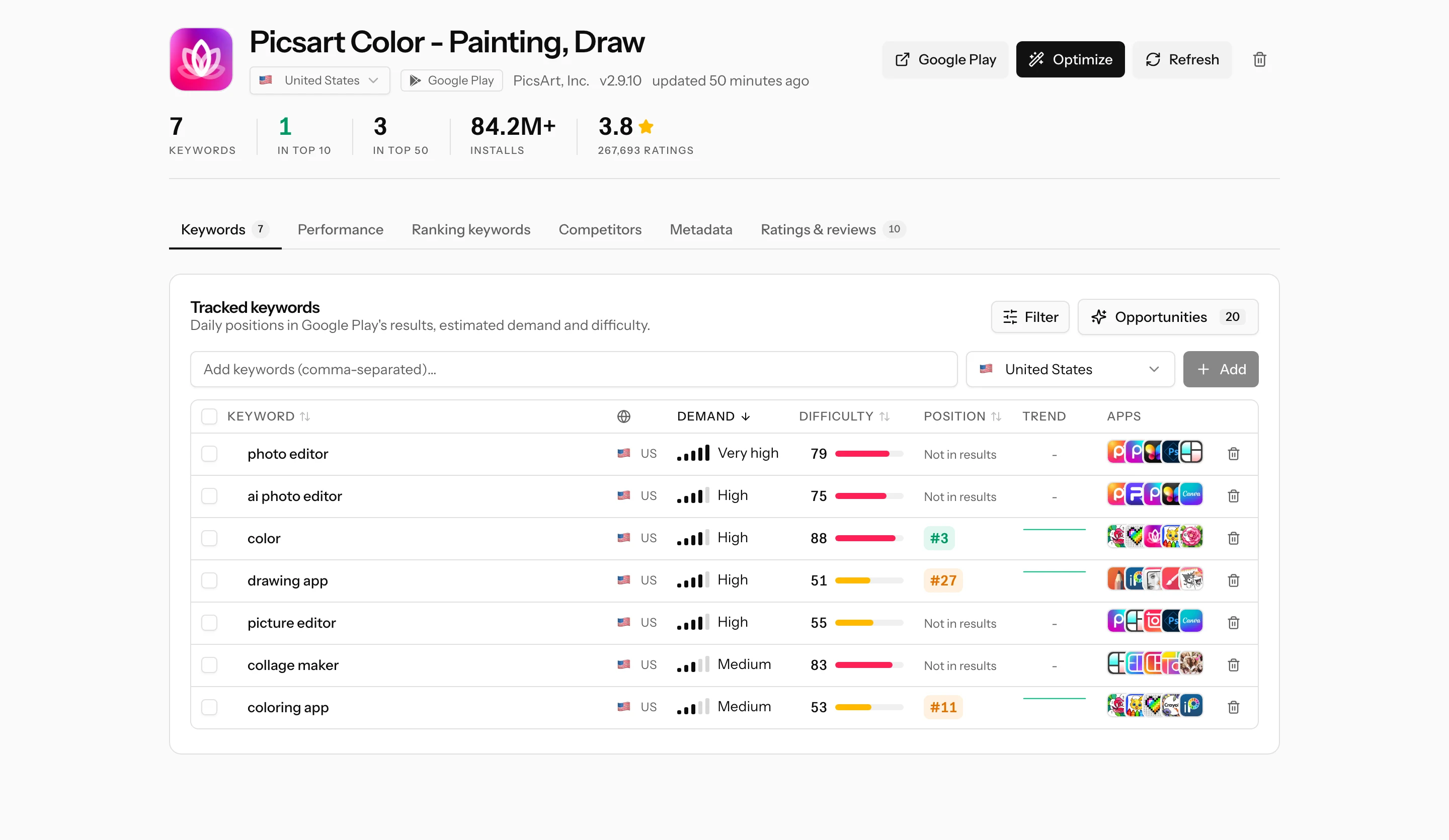
On Apps, switch the search to Google Play and search by name, paste the package name (for example com.spotify.music) or paste a Play store link. Then pick Track.
From there it works like an App Store app: add keywords, and ASO Atlas checks your position every day. One difference to know: for any search, Google Play shows one short list of apps (usually around 30, at most 50) and nothing below it. If your app is not in that list, the position reads # -, the same as an App Store app outside the ranking. See Rank tracking.
A few App Store features do not apply to Google Play apps:
- Ratings by country. Google Play shows one rating worldwide, so there is one rating chart.
- Availability by storefront. This is App Store only.
- Popularity trends. The weekly trend sparkline exists for App Store keywords only.
Optimizing a Google Play listing
The metadata optimizer has a Google Play mode with Google Play's three fields:
| Field | Limit | What it is |
|---|---|---|
| Title | 30 characters | The app name, the strongest signal |
| Short description | 80 characters | The line under the title, also a strong signal |
| Full description | 4000 characters | Read by Google Play for search |
The advice flips compared to the App Store. The App Store has a hidden keyword field and repeating a word wastes space. Google Play has no keyword field and reads your whole description, so:
- Put your most important keyword in the title or the short description.
- Mention each main keyword 2 to 4 times in the full description, where it reads naturally.
- Do not overdo it. Google Play treats heavy repetition as spam. The optimizer flags a keyword that appears more than 4 times, or 3 to 4 times in a short description where it takes over 3% of the words.
For every tracked keyword, the optimizer shows where it lives (title, short description, or only the description) and how many times the description mentions it. Prefill from Google Play copies your live listing into the editor, so you start from what is published.
Linking Play Console
If the app is yours, link your Play Console to see real numbers on the app's Performance tab: installs, uninstalls, store listing visitors, acquisitions and conversion, crashes, ratings, countries, traffic sources, and the Google Play search terms people used before they visited your listing.
- Open Settings, then Integrations, and find the Google Play Console card.
- In Play Console, stay on your account's main page (the list of all your apps, not inside one app). Open Users and permissions in the left menu and invite the account shown on the card. Under Account permissions give it only View app information and download bulk reports (read-only). ASO Atlas can read your reports and never change anything.
- In the same left menu open Download reports, then Statistics, and use Copy Cloud Storage URI at the top right. Paste it into the card.
Google usually grants the invited account access within a day, sometimes a few. Until then the card says it is waiting and ASO Atlas checks again every hour; there is nothing more to do. Google posts each day's numbers a few days later, so the newest days fill in over time.
Once linked, the card and your Apps page offer Import all: every app in your Play Console is tracked in one click, each with a starting set of keywords taken from the searches Play Console reports, the keywords it already ranks for, and what its title and descriptions target.
Keyword lists and reverse lookup
Keyword lists can hold App Store and Google Play keywords side by side. Each row shows its store, and the same term can sit on a list once per store and market. Reverse lookup has the same store switch, so you can look up the keywords any Google Play app ranks for.