DocsFeatures
Keyword research: evaluate any App Store search term
Research up to 50 keywords at once. Popularity, difficulty, a plain-language verdict and the live competitor list for 60+ storefronts.
The Research page answers one question for any App Store search term: is this keyword worth targeting? Type a term, or paste fifty, and each one comes back with its popularity, its difficulty, a verdict and the apps currently winning it. No tracked app required.
If you have never used the page before, your first keyword research session walks through it step by step. This article is the full reference.
Batch research
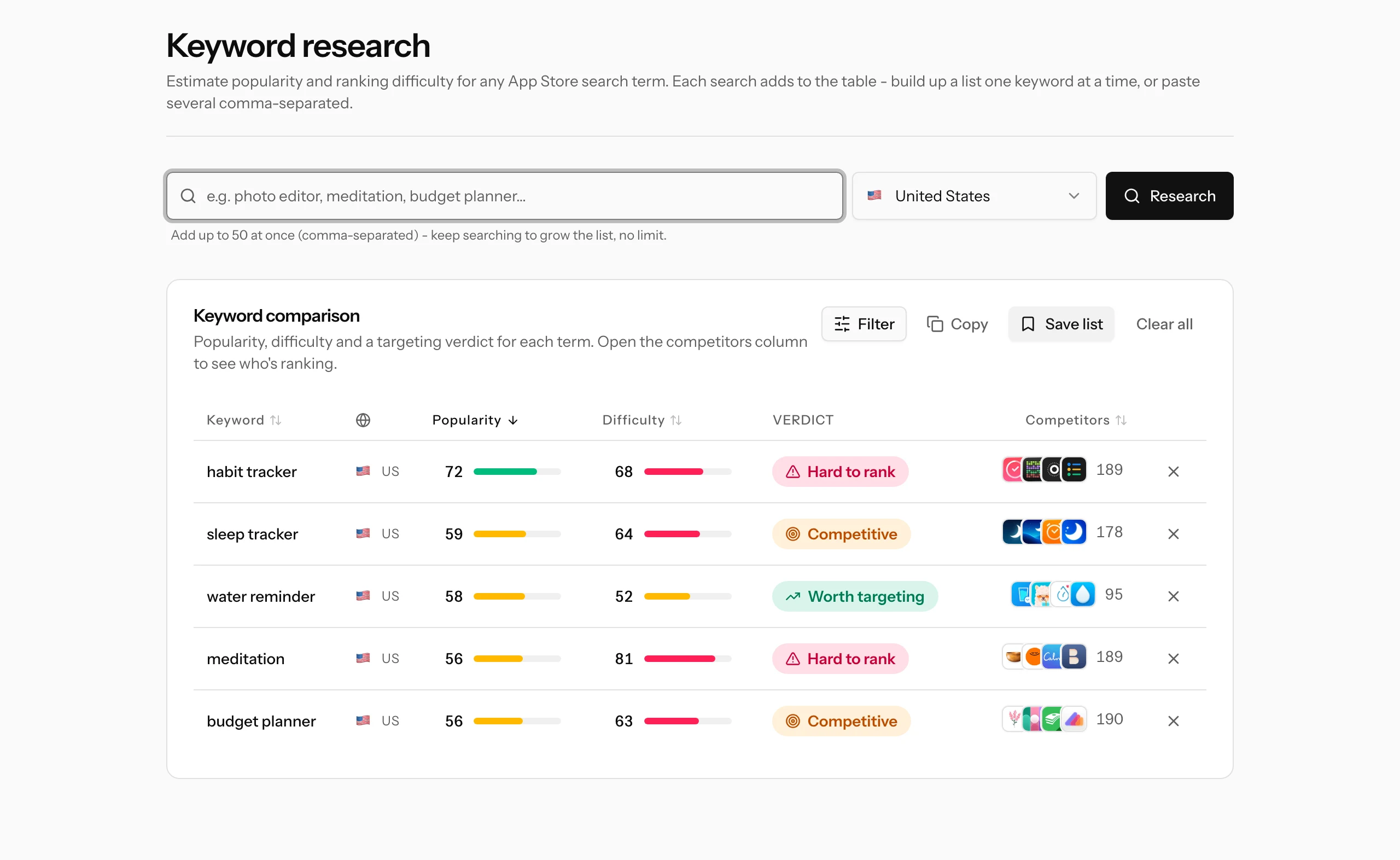
The search box accepts a single keyword or a comma-separated batch of up to 50 at once. Each search adds to the table rather than replacing it, so you build a working set: paste a batch, scan it, remove the losers with the X on each row, search again. The set has no size limit and survives a page reload.
When you are happy with a set, Save list stores it as a named keyword list under My Apps (useful when planning an app you have not shipped yet), and Copy puts the terms on your clipboard, ready for a keyword field.
Reading the columns
Every row shows the keyword, the storefront it was measured in, and four things:
- Popularity (0-100): how much search demand the term gets in that country. Scores are backed by verified Apple search data wherever it is available; where it is not, you get our calibrated estimate instead, and the score upgrades automatically in the background whenever verified data becomes available for that term. The scale is explained in the popularity score.
- Difficulty (0-100): how strong the apps already ranking are, based on the actual search results. Lower is better. See keyword difficulty for how to read it.
- Verdict: the two scores combined into plain language. Strong opportunity (high demand, beatable competition - prioritize it), Worth targeting (solid demand you can realistically take on), Competitive (real demand, but a fight), Hard to rank (established apps dominate), Low demand (few searches, limited upside even if you rank) and Not enough data.
- Competitors: the number of apps returned for the search, with icons of the current top apps.
Click any column header to sort, and use the filter to narrow a large set, for example to only rows above a popularity threshold. The verdict is a shortcut, not a law; how to pick keywords covers the judgment behind it.
The live competitor list
Click the icons in the Competitors column and a modal opens with the apps currently ranking for that term: position, name, developer, star rating and rating count. This list is fetched live when you open it, so it reflects the search results as they are right now, not a stored snapshot.
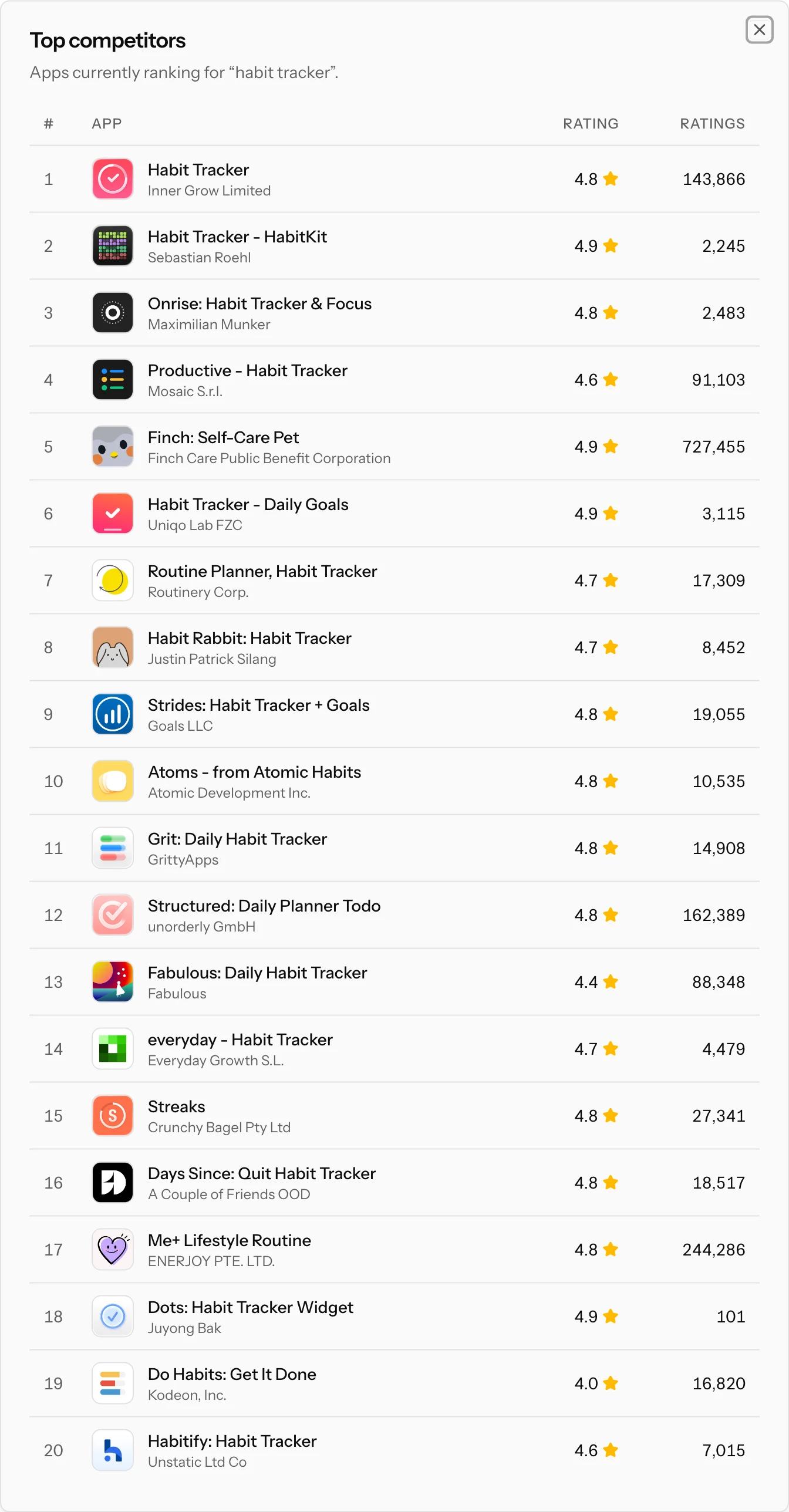
The rating counts are the fastest difficulty gut-check there is: a top ten full of apps with hundreds of thousands of ratings tells you everything the difficulty score summarized.
Related keywords
Research a single term and a Related keywords card appears under the table with suggestions pulled from real App Store search behavior. Tap any suggestion to add it to the table. This is the quickest way to expand from one seed idea into a full candidate set: start with your main keyword, add the plausible suggestions, sort by verdict.
Choosing the country
The storefront selector next to the search box covers more than 60 markets. Popularity, difficulty, the verdict and the competitor list are all specific to the selected country: "habit tracker" in the US and the same phrase in Germany are different keywords with different demand and different winners. Switching country re-measures the whole working set in the new storefront. More in countries and storefronts.
How fresh the numbers are
Keywords that anyone researched recently are served instantly from stored results, so a typical batch fills in the moment you hit Research. Anything new, or older than about two weeks, is recomputed in the background: the row shows a loading bar for a few seconds and then fills in. You never trade freshness for speed; stale numbers recompute themselves rather than being served forever.
Where to go next
- How to pick keywords: turning scores into an actual keyword strategy.
- The popularity score and keyword difficulty: what drives the two numbers.
- Rank tracking: once a keyword makes the cut, track where you rank for it.