DocsFeatures
App icon generator
Turn a one-line description of your app into four App Store ready icon options. How styles, credits, downloads and the icon brief work.
Keywords and rankings get your app seen. The icon decides whether anyone taps. The Icon Generator turns a short description of your app into four App Store ready icon options, so you can ship a real icon without opening a design tool. If you have not created an account yet, the app icon generator overview explains the feature from the outside; this page covers how to use it well.
Why the icon matters for ASO
Ranking is only half of the job. When your app appears in search results, the searcher sees a thumbnail-sized icon next to your name and subtitle, and decides in a fraction of a second whether to tap. Two apps at the same position can see very different install numbers purely because one icon reads clearly at that size and the other does not. And because the App Store rewards apps that convert their impressions, a better tap-through rate feeds back into better rankings. The icon is the cheapest conversion lever you have.
Generating icons
Open Icon Generator and fill in the brief on the left:
- App name: what your app is called.
- Description: a sentence or two about what the app does and the mood you want. This is the main steering input, so be specific: "a minimalist productivity app for timed, distraction-free work sessions" gives the generator much more to work with than "a timer app".
- Style: pick one of five directions.
| Style | What it looks like |
|---|---|
| Flat | Solid shapes, minimal shading |
| Gradient | Smooth colour blends with a soft glow |
| 3D | A glossy rendered object with studio lighting |
| Minimal | A single simple glyph with lots of negative space |
| Playful | Rounded, friendly, mascot-like shapes in bright colours |
Hit Generate 4 icons. Generation runs in the background and usually takes under a minute; the page updates on its own and the four variants appear in the canvas.
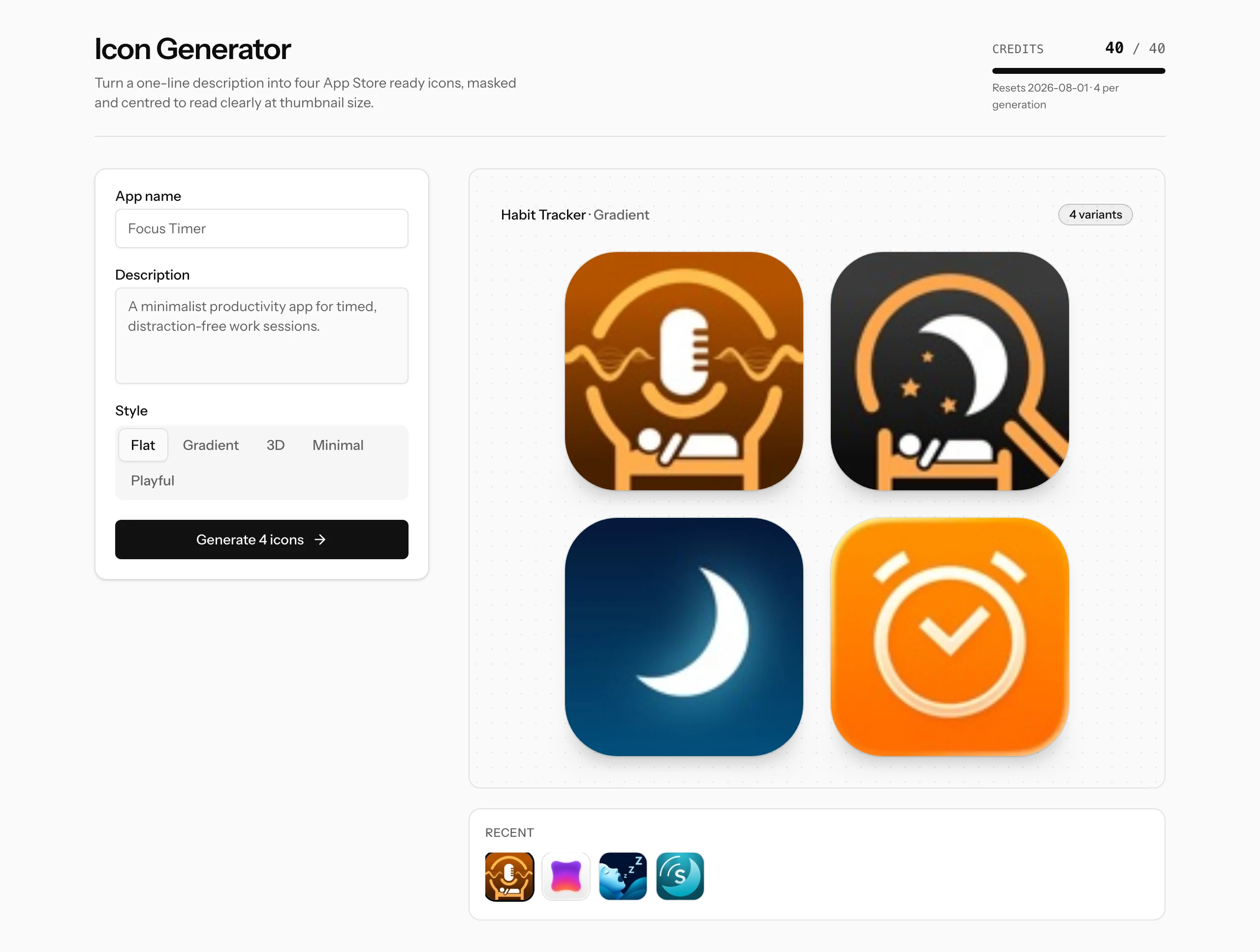
Every variant is generated with the rules that matter at store size baked in: one centred subject, high contrast, no text, artwork filling the whole square. You do not need to write any of that into your description.
What you get
Each run produces four square PNG files. The artwork is full-bleed with no pre-rounded corners, which is exactly what App Store Connect expects: Apple applies the rounded mask automatically. The previews on the page are already shown with the iOS mask, so what you see is how the icon will read in search results.
Hover over any variant and hit Download to save it. Nothing forces you to pick just one; download several and show them to users or teammates before committing.
Credits and limits
Generation costs AI credits: 4 credits per run, one per icon. The meter at the top of the page shows your remaining balance, your monthly allowance and the date it resets (the 1st of each month). If a generation fails, the credits are refunded automatically; adjust the brief and try again. There is also a daily cap on generation runs to keep usage sane.
Recent generations
Every run is kept in the Recent strip under the canvas. Click any thumbnail to reopen that generation and download its variants again, or to compare two briefs side by side by flipping between them.
Getting better results
- Name the subject. If you already know what the icon should show ("a water droplet", "an owl", "a padlock"), put it in the description. A concrete subject beats an abstract summary.
- Run the same brief in two styles. Flat and Minimal often produce the cleanest store-ready options; Playful and 3D suit games and kids' apps. The cost of a second run is 4 credits, far cheaper than guessing wrong.
- Judge at small size. Squint at the variants or step back from the screen. The winner is the one you can still identify at a glance, because that is how the store shows it.
Where to go next
- Quick start: track your app and its keywords, so the new icon has rankings to convert.
- Rank tracking: watch what happens to your positions after you ship the new icon.