DocsGetting started
Quick start: from signup to first tracked keyword
Add your app, pick your first keywords and see where you rank. The five-minute path to a working ASO setup in ASO Atlas.
This guide takes you from an empty account to a tracked app with live keyword rankings. It takes about five minutes.
Step 1: add your app
Head to Apps and paste your app's App Store link, or just search for it by name. Pick the country whose storefront you care about most; you can change it or track more markets later.
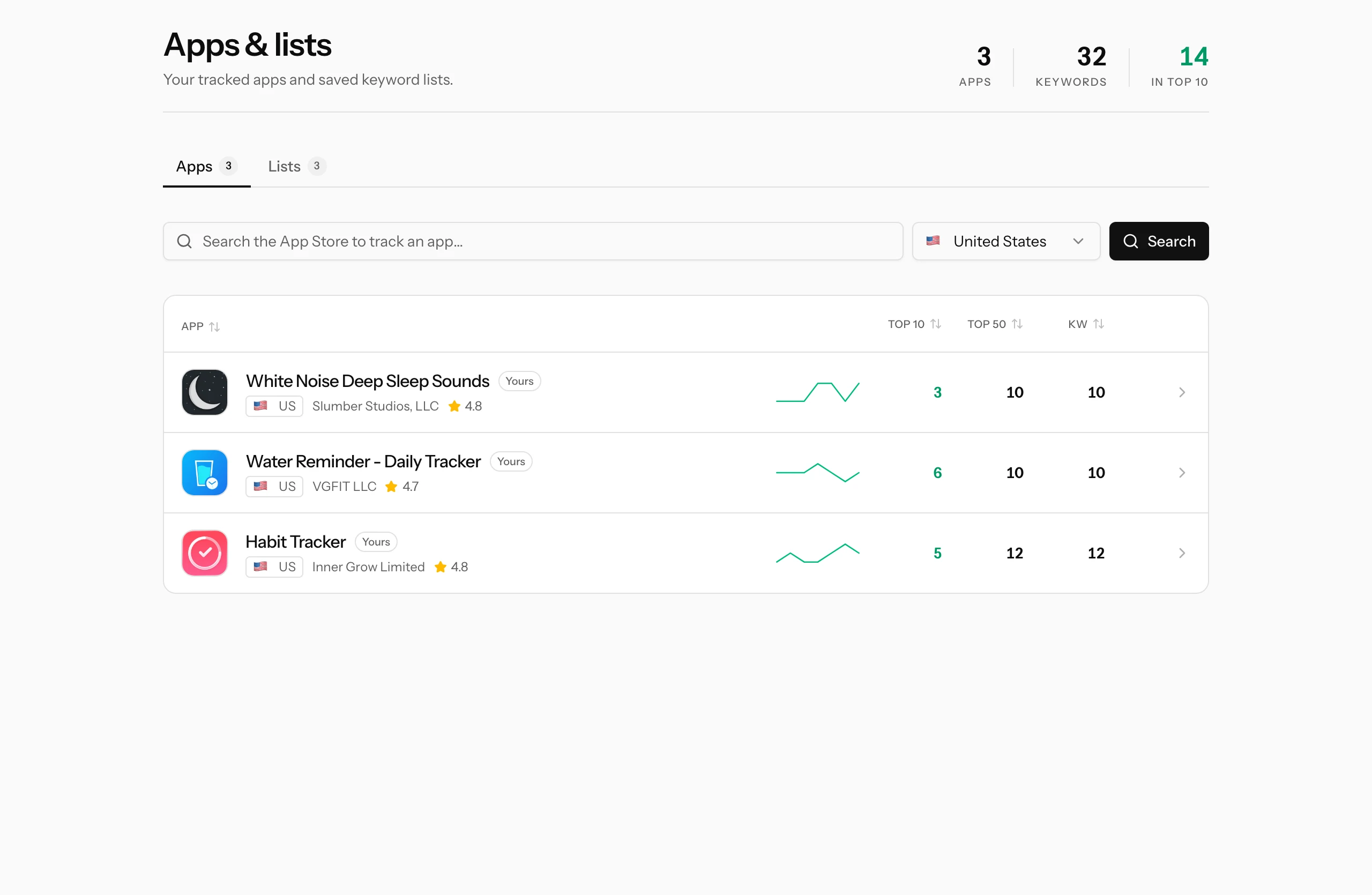
ASO Atlas pulls in your current metadata (title, subtitle, screenshots, ratings) and sets up the app page. If you publish your own apps, Import owned apps connects them all in one step.
Step 2: let the starter keywords load
The moment your app is added, ASO Atlas suggests keywords from your app's name and metadata and checks where you rank for each one. Within a minute you have a first honest snapshot: for each keyword you see its popularity, its difficulty, your current position and an overall verdict.
Do not worry if most positions look bad or empty. That is normal, and it is exactly the information you need: it tells you which keywords are worth fighting for and which are lost causes.
Step 3: add the keywords you actually care about
Now add the searches you believe describe your app. Type them into the keyword box on your app's page, comma-separated, and add the whole batch at once.
Good first candidates:
- What would you type to find your own app?
- The main problem your app solves ("sleep sounds", "habit tracker", "water reminder")
- Your competitors' names, to see whose users are searching for what
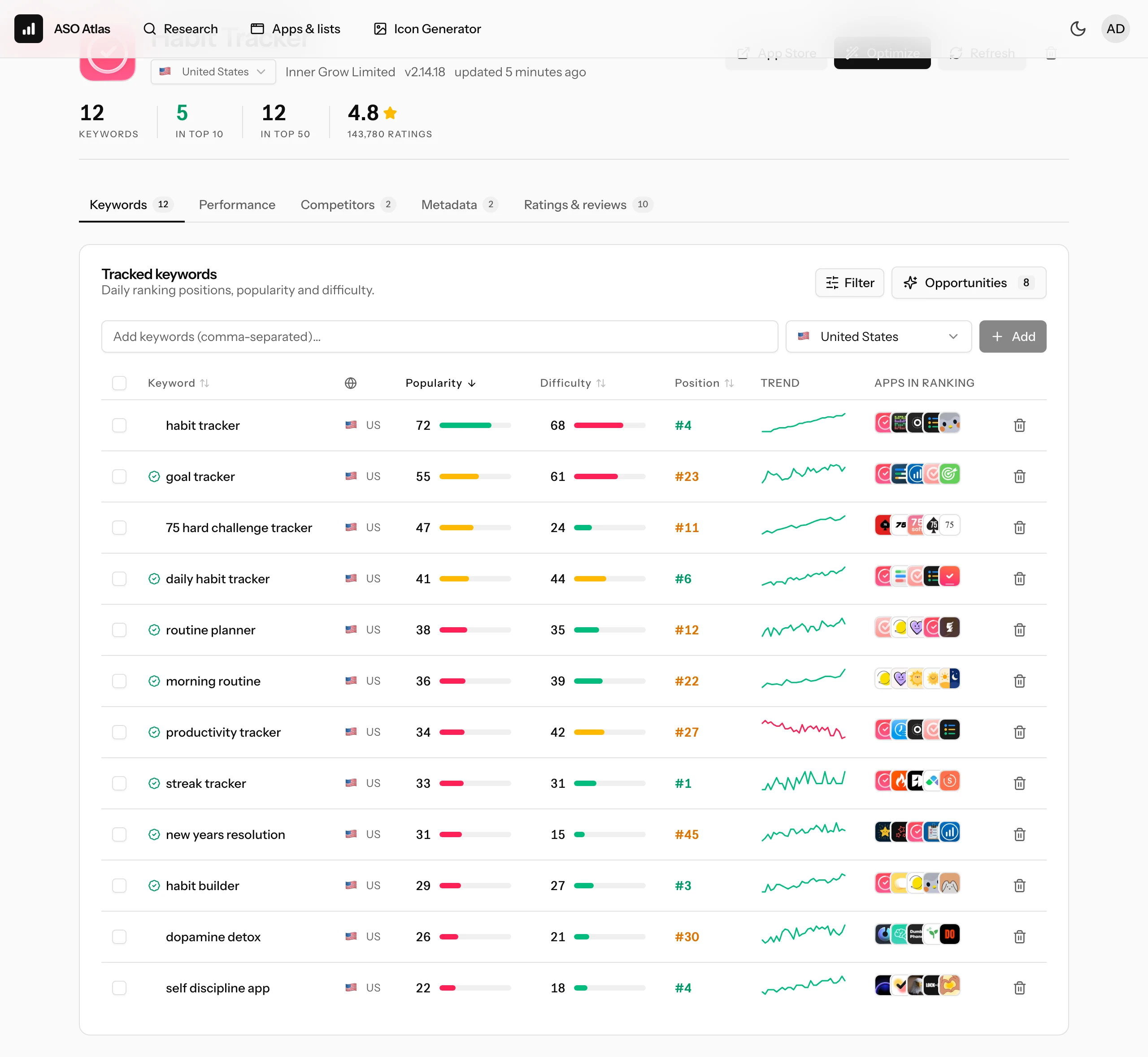
Each keyword gets checked live: popularity, difficulty and your rank, usually within seconds.
Step 4: read the results
Each keyword row gives you:
- Popularity (0-100): how many people search this. Below ~20 means very little traffic; above 60 means real volume and usually real competition.
- Difficulty (0-100): how strong the ranking apps are. Lower is better for you.
- Position: where you rank today in the chosen country. Dash means you are not in the top results at all.
- Trend and ranking apps: the sparkline of your recent positions, and the icons of the apps currently winning this search.
The Opportunities button picks out the keywords where demand, difficulty and your current position line up in your favor. Start there.
If you want to understand what drives these numbers, read how to pick keywords next.
Step 5: come back tomorrow
Rankings are rechecked daily from here on. The trend chart on each keyword shows every move, so when you ship a metadata change you will see exactly what it did. That feedback loop, change something, watch the ranks, is the entire game.
Where to go next
- Your first keyword research session: find keywords you have not thought of yet.
- Reading the dashboard: what the overview numbers mean.
- Rank tracking: how the daily checks work.