DocsFeatures
Keyword lists
Save keyword sets as named lists with live popularity, difficulty and verdicts. Build candidate pools, then move the winners into a tracked app.
Not every keyword you find deserves a spot in your tracked app right away. Keyword lists are your holding area: named, saved sets of keywords that keep their metrics fresh while you decide what to do with them. A list belongs to you, not to an app, so you can plan an app you have not even built yet.
Creating a list
There are two ways to start one:
- From Keyword Research. After you run a batch on the research page, the comparison table has a Save list button. It saves the current working set, exactly the keywords on screen, as a named list. This is the natural end of a research session: prune the table down to the terms you like, then save the survivors.
- From the Saved lists tab. On the research page, the Saved lists tab has a New list button that creates one up front: give it a name, pick a store, and optionally paste starter keywords (comma-separated). You can also leave it empty and fill it later.
Your lists live on the Saved lists tab of the research page, each showing its market and keyword count. A list holds up to 200 keywords.
What a list shows
Open a list and you get the same table you know from keyword research: each keyword with its current popularity, difficulty, an overall verdict, the number of results competing for the term, and the icons of the apps currently ranking for it. Columns sort, and the filter button narrows the table by score or verdict, handy once a list grows past a couple dozen rows.
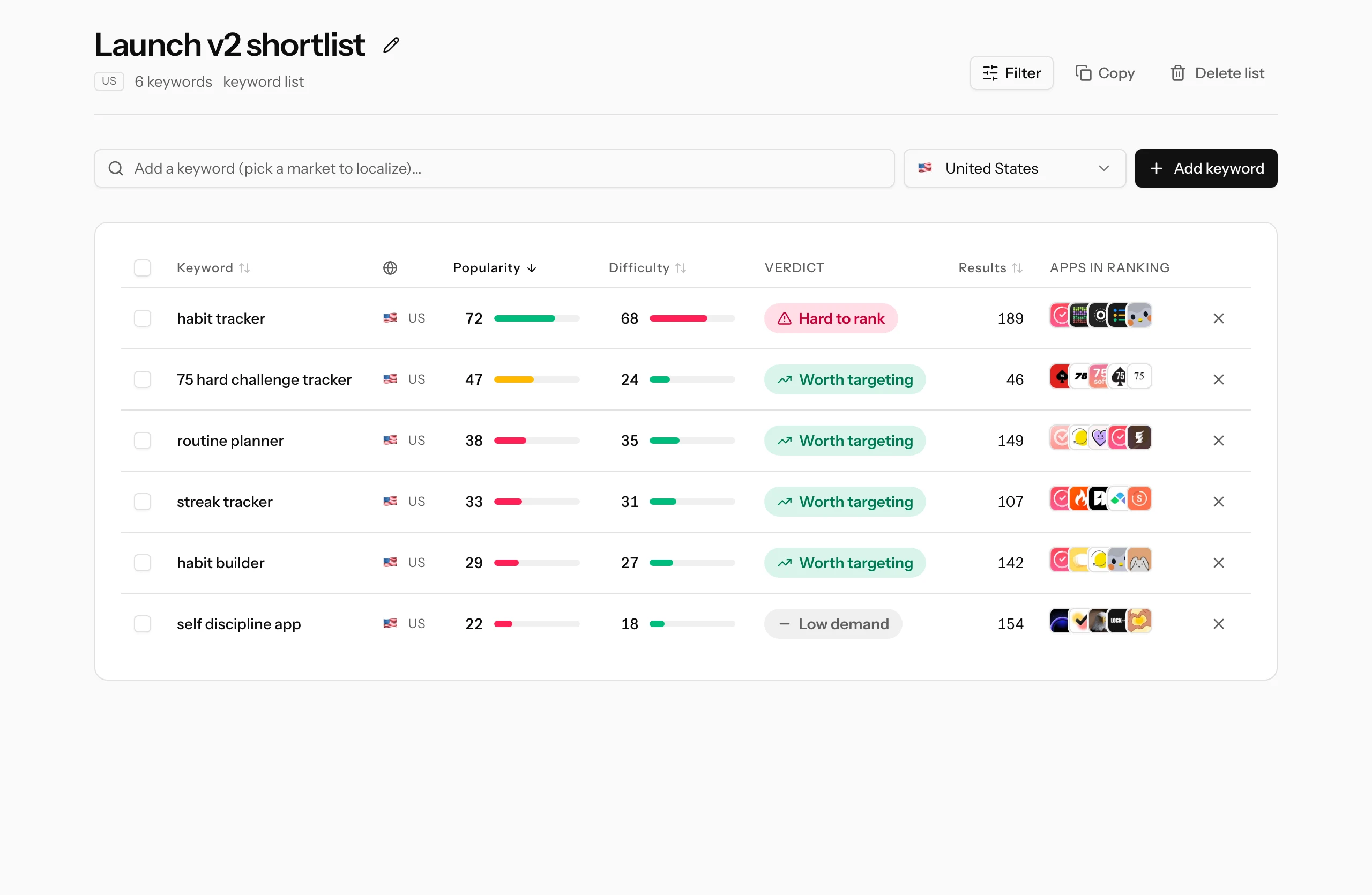
A few details worth knowing:
- Every row is a keyword in a specific market. The list has a home country, but the add box lets you pick any storefront, so one list can mix the same term across several markets. Removing a row only removes that market's entry.
- Adding a keyword researches it on the spot, so new rows arrive with popularity and difficulty already filled in.
- A row still waiting for data shows placeholder bars; running the term through keyword research fills it in.
- Rename with the pencil icon next to the title, delete from the button on the right. Deleting a list never touches your tracked apps.
What lists are good for
- Candidate pools. Keep a shortlist of maybes before committing them to daily rank tracking. Metrics stay visible, so a keyword that looked mediocre last month can earn its promotion later.
- Seasonal ideas. "Christmas features", "back to school": park them until the season approaches, then review with current numbers.
- Per-market sets. Planning a localization? Build a list per storefront and compare what the same intent looks like in each market.
- Competitor themes. Collect the terms a rival seems built around and watch how hard that territory would be to enter. How to pick keywords explains how to read the numbers when you do.
Moving keywords into a tracked app
When a list has proven its keywords, promote them:
- Tick the checkboxes next to the keywords you want (or the header checkbox for all of them). A selection bar appears with a Copy button.
- Copy puts the terms on your clipboard as a comma-separated set, the exact format every keyword box in ASO Atlas accepts.
- Open your app's page and paste them into the add-keywords box. The whole batch starts tracking at once.
The Copy button in the list header does the same for the entire list in one click. The flow works in reverse too: copy from a tracked app's table and paste into a list's add box, or back into research.
Where to go next
- Your first keyword research session: the workflow that ends with saving a list.
- Keyword research: what popularity, difficulty and the verdict mean in the table.
- How to pick keywords: deciding which list entries deserve tracking.