DocsGetting started
Your first keyword research session
A hands-on tour of the Research page. Compare popularity, difficulty and verdicts for up to 50 keywords at once, then keep the winners.
The Research page is where you evaluate keywords before committing to them. No tracked app required: type any App Store search term and you get its demand, its competition and a plain-language verdict. This walkthrough takes you through a first session, from one keyword to a shortlist worth acting on.
Start with one keyword
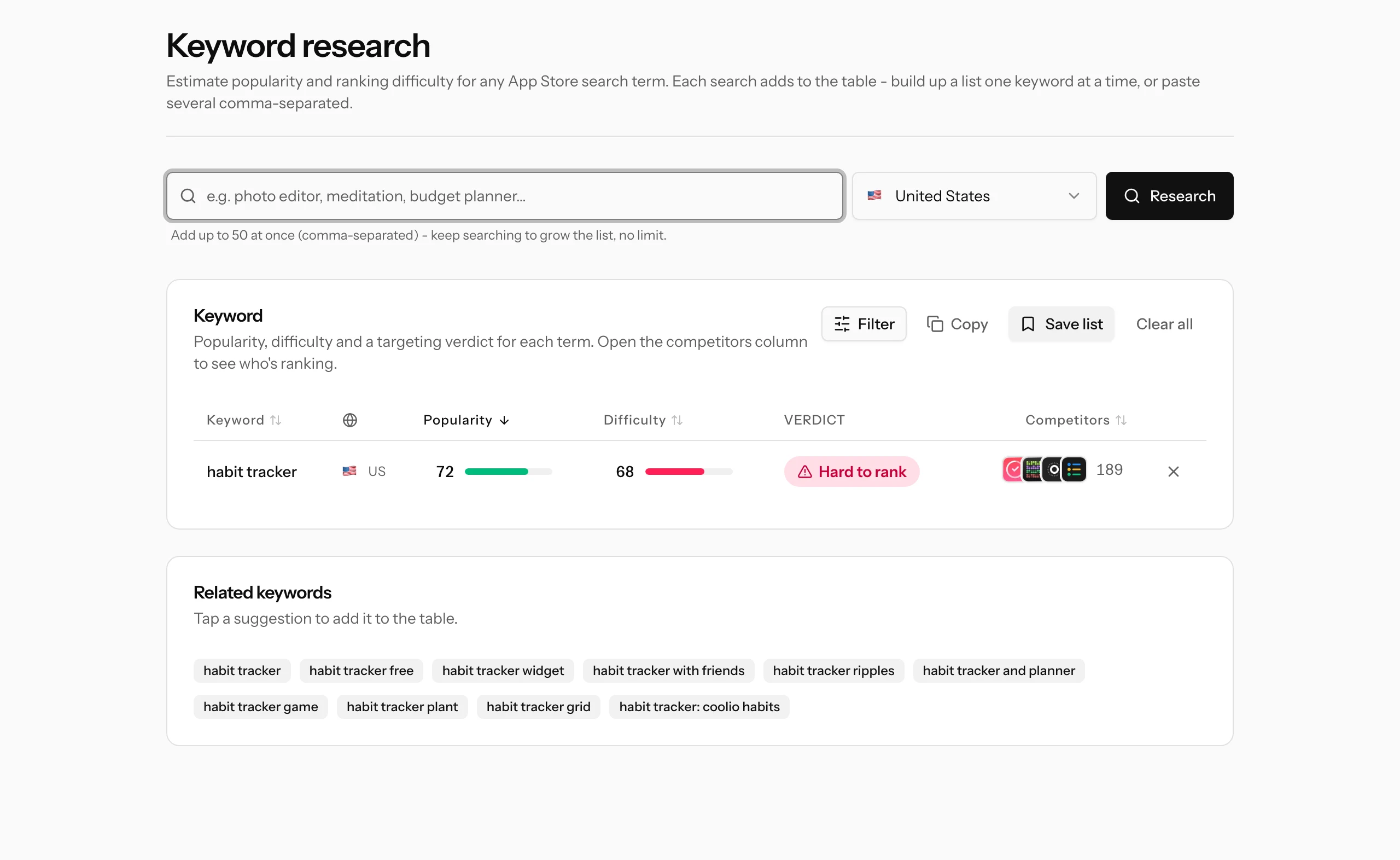
Open Keyword research from the sidebar (or go straight to /keywords). Type a term that describes your app, pick the storefront country, and hit Research.
With a single keyword in play you get the full picture: its row in the table, plus a Related keywords card with real search suggestions people type around your term. Tap any suggestion to add it to the table, so one seed keyword quickly grows into a candidate list you would never have brainstormed on your own.
Compare a whole batch
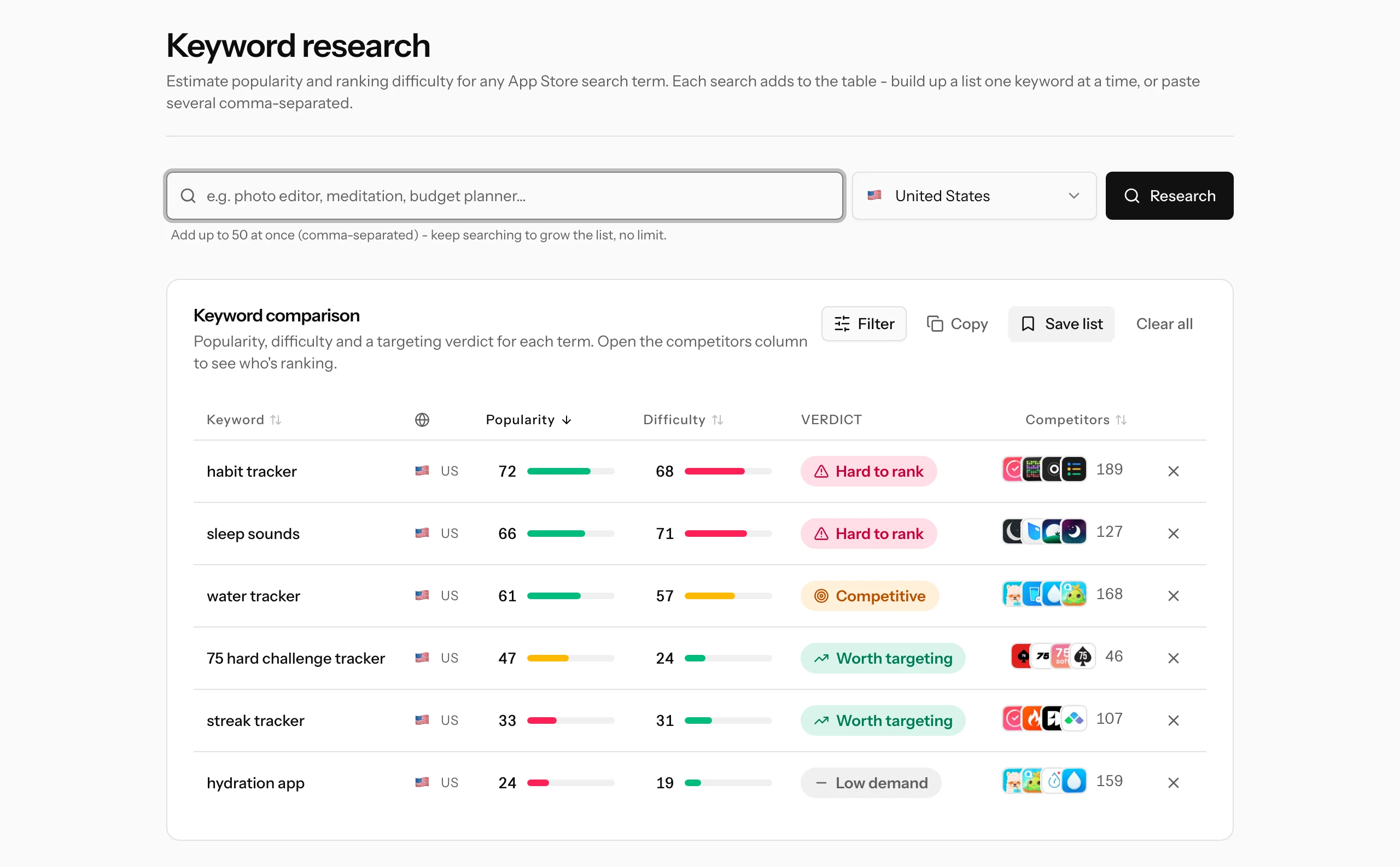
You can also paste several terms at once, comma-separated, up to 50 per search. The table keeps everything you add across searches, there is no cap on the total, and the working set survives a page reload. Switching country re-checks every keyword in the new storefront, because the same term is a different battle in every market.
Reading the results table
Each row answers "is this keyword worth chasing?" with four signals:
- Popularity (0-100): how many people actually search this term. Some scores are verified Apple search data, others are our estimate; see verified vs estimated for the difference.
- Difficulty (0-100): how strong the apps already ranking are. Lower means a realistic shot for a smaller app.
- Verdict: the two numbers combined into a recommendation.
- Competitors: the icons of the top ranking apps and how many apps compete for the term overall.
The verdict badges mean:
| Verdict | What it tells you |
|---|---|
| Strong opportunity | High demand with beatable competition. Prioritize it. |
| Worth targeting | Solid demand and competition you can realistically take on. |
| Competitive | Meaningful demand, but you will be fighting for it. |
| Hard to rank | Strong, established apps dominate this term. |
| Low demand | Few people search this. Limited upside even if you rank. |
| Not enough data | Demand could not be estimated for this term yet. |
Columns are sortable, and the Filter button narrows the table by popularity, difficulty or verdict, which is how you sift a 40-keyword paste down to the handful that matter. The X at the end of a row removes a keyword you have ruled out.
Check who you are up against
Click the competitor icons on any row to open the full list of apps currently ranking for that term, fetched live, with each app's rating and review count. This is the reality check behind the difficulty score: a term "owned" by a few giants with millions of ratings reads very differently from one where the top results are small apps you can outdo.
Do something with the winners
Research only pays off when it changes what you track or ship. Three ways to keep your findings:
- Save list stores the current table as a named keyword list under My Apps. Ideal when you are researching an app you have not built or added yet.
- Copy puts all the terms on your clipboard, comma-separated, ready to paste anywhere.
- Add them to a tracked app. The research table shows the market; to see where your app ranks for these terms, paste the winners into the keyword box on your app's page, as in the quick start. From then on their positions are checked daily.
A good first session ends with 5-15 keywords rated Worth targeting or better, saved or tracked. What you do with them next, choosing which ones deserve a place in your title and subtitle, is covered in how to pick keywords.
Where to go next
- How to pick keywords: turn a shortlist into a metadata plan.
- Keyword lists: organize research for apps you are planning.
- Keyword research: the full feature reference.