DocsFeatures
Keyword history
See the keyword field every version of your app shipped with, which keywords you already tested, how they ranked, and whether to try them again.
Every App Store release is a keyword experiment: you swap a few words in the keyword field, ship, and wait. A few releases later it is hard to remember what you already tried, and you end up testing the same keyword twice. Keyword history keeps that record for you. It reads the keyword field of every version of your own app, shows what each release changed, and lets you write down what you learned.
You find it on the Metadata tab of any app you own.
What you see for each version
Versions are listed newest first. For each one you get the terms it added and removed compared with the version before, and the full keyword field it shipped with, counted against the 100 character limit.
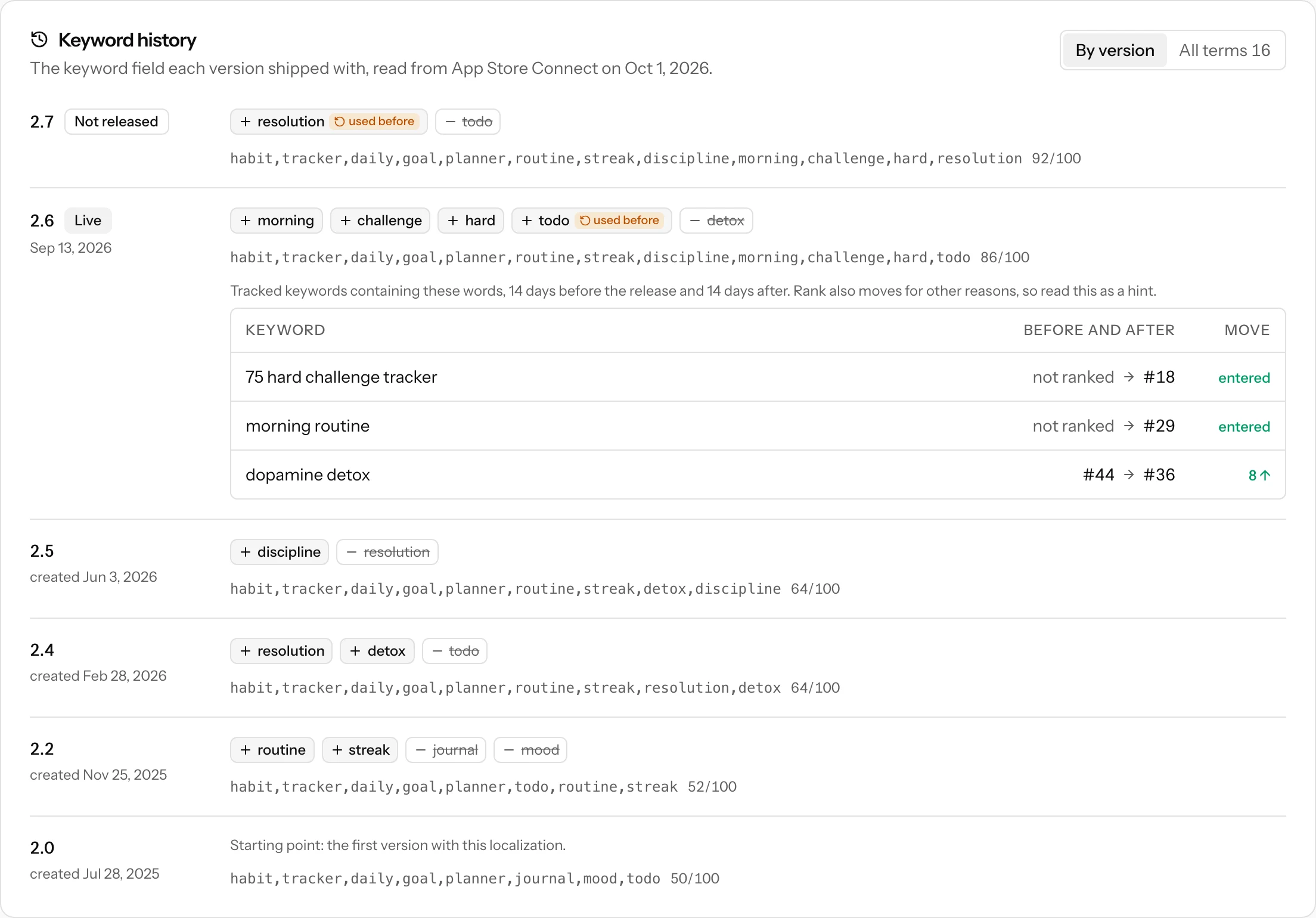
A few markers are worth knowing:
- Live is the version on the App Store right now.
- Not released is a version you are still preparing. It shows what the next release will change, so you can catch a mistake before you submit.
- used before on an added term means you already had that term in an earlier version and removed it. You are circling back.
Apple keeps the keyword field of every past version, so the whole history appears at once the first time it is read. You do not have to wait for it to build up.
Did the change move anything?
Under a version, ASO Atlas lists the keywords you track that contain the words that version added or removed, with your position up to 14 days before the release and up to 14 days after. A keyword that was not ranked and now is shows as entered.
Read this as a hint, not as proof. Rankings also move because of ratings, competitors and the store's own reshuffles, and the table cannot tell those apart from your change. Two things to know:
- The comparison is only shown for releases that happened while the app was tracked here, because that is when the release day and the rank checks are both known. Older versions are dated by the day they were created in App Store Connect, a few days ahead of the actual release.
- A keyword has to be tracked to appear. If you plan to test a word, track the keywords it should unlock before you ship.
Every term you have ever used
Switch to All terms for the lookup most people used to keep in a spreadsheet: every term that was ever in the keyword field, whether it is still live, the version it first appeared in, the version that removed it and how many versions it ran for. Type into Have I used... to check a keyword before you add it.
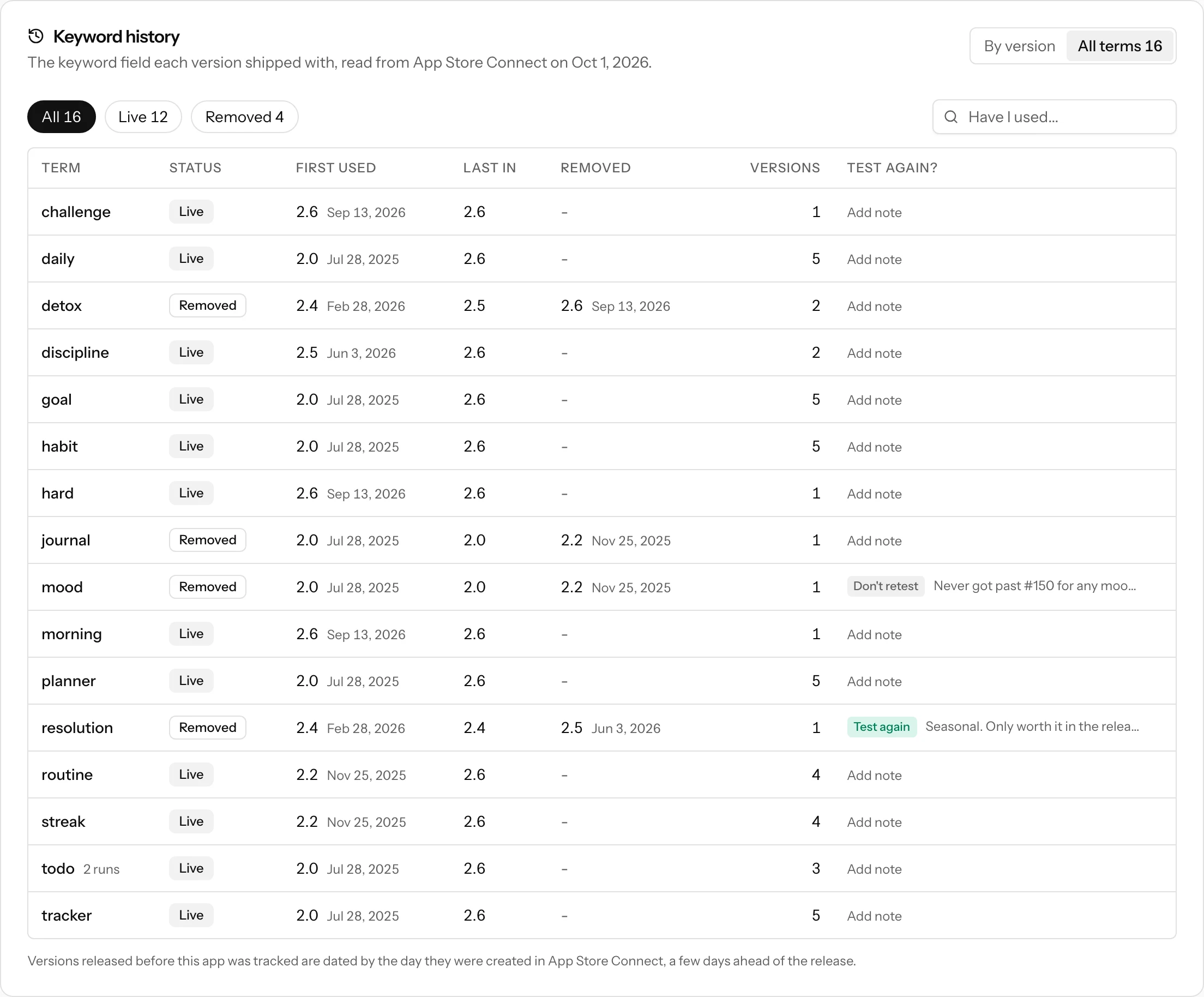
A term that was removed and brought back shows how many runs it had. Each localization has its own history, so pick the language at the top of the card when your app has more than one.
Notes: should I test this again?
The last column is yours. Click Add note on any term and record two things:
- A verdict: Test again or Don't retest.
- A short note on how it went, such as the position it stalled at or why you dropped it.
Notes belong to you: they stay even if you turn keyword history off.
A warning while you write
The record matters most at the moment you are about to repeat yourself. In the metadata optimizer, when you type a term into the keyword field that this market already carried and dropped, a note appears under the field with when it ran, the version that removed it, and your own verdict and note.
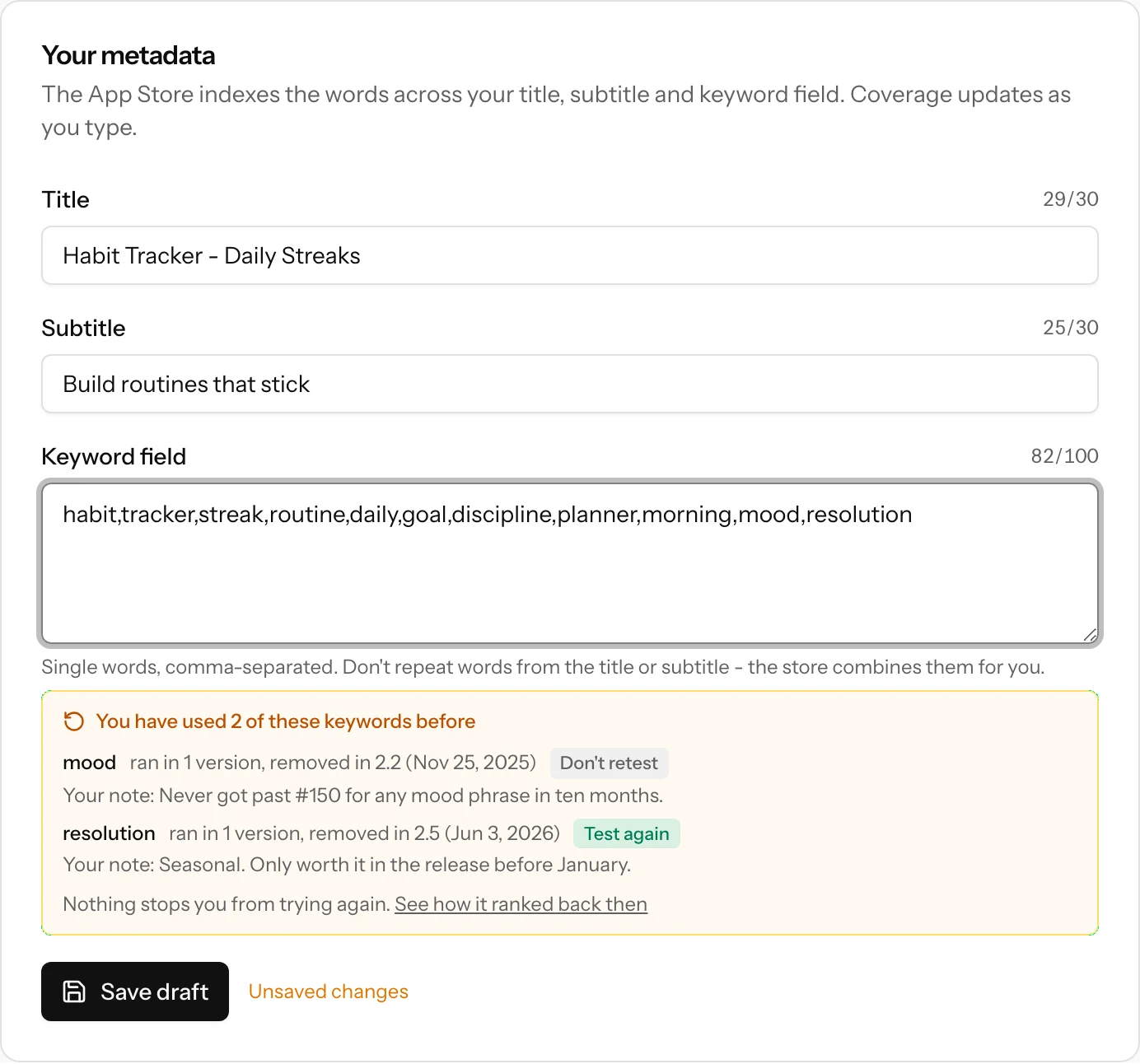
Nothing is blocked. Sometimes a second try is the right call, for example a seasonal keyword or a term that failed before your ratings improved. You just make that call knowing what happened last time.
Turning it on
Keyword history needs to read your App Store listing, and the key most people connect for sales reports (Sales or Finance role) is not allowed to. So it is off until you choose a key for it, under Settings → Integrations → Keyword history:
- In App Store Connect, open Users and Access → Integrations and create an API key with the Marketing role, in the same team as the key you already connected.
- Paste its Key ID and upload the .p8 file.
- Your past versions are read right away and appear on each app's Metadata tab within a minute.
If the key you connected is already an Admin, App Manager, Developer or Marketing key, choose Use my connected key instead. No second key is needed.
What the key is used for:
- Reading only, once a day. The keyword field, title and subtitle of your own apps. ASO Atlas never changes your listing or submits anything.
- Why Marketing. It can read listings and cannot see your sales or finances. Apple has no read-only version of it, which is why the list above spells out what we do with it.
- Yours to revoke. The key is stored encrypted. Revoke it in App Store Connect or turn keyword history off at any time; the stored key and the history are deleted.
Keyword history is available for App Store apps that belong to your connected account. The keyword field is private to the app's owner, so there is no such history for competitors, and Google Play has no keyword field at all.