DocsFeatures
Users and timelines
Find one install of your app by its install id or your own user id and read everything it did, session by session, to answer a support request.
Charts tell you what most people do. When one person writes "the app lost my streak", you need what they did. The Users tab of app analytics finds one install and lays out its whole history: where it came from, how far it got and every session it had.
Finding an install
The tab opens on the installs seen most recently, newest first, with their platform, version, country, when they were last seen and the furthest stage they reached (onboarding start, paywall, trial, paid). Show more reads further back.
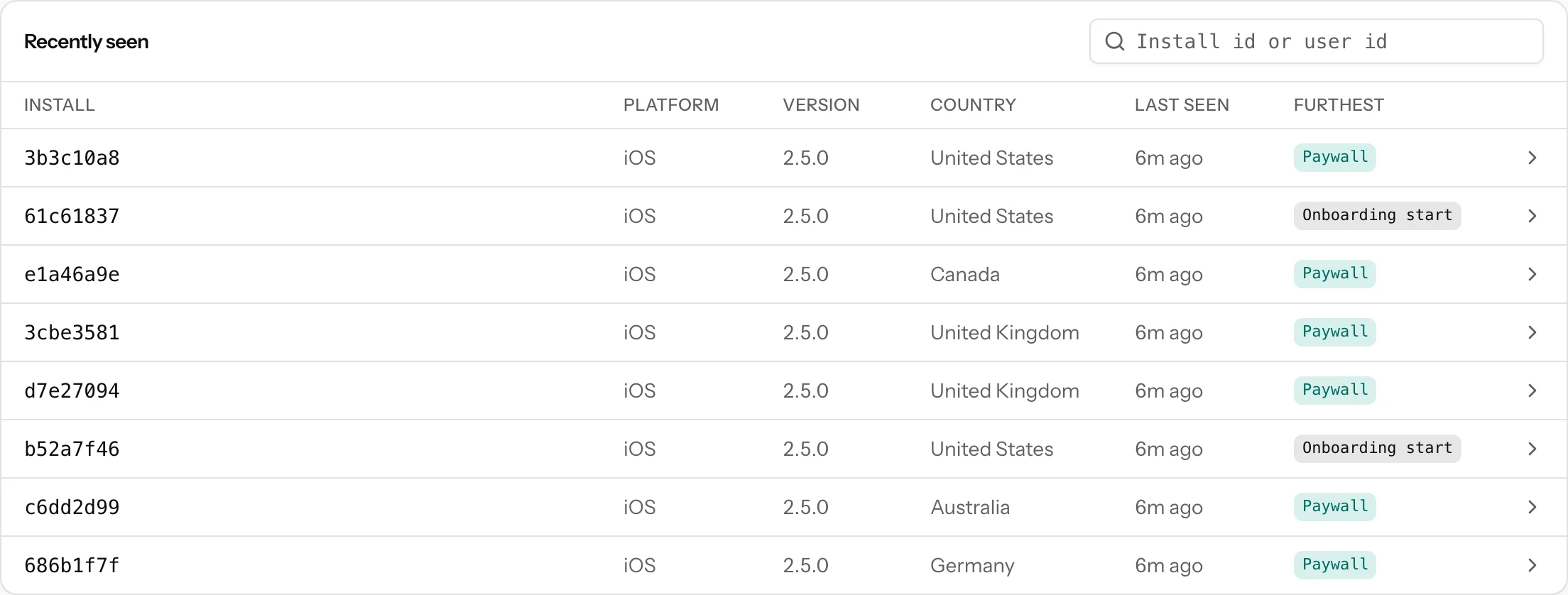
The search box takes:
- An install id, or its first 6 characters or more. Your app knows its own install id, so a support screen or a "copy diagnostics" button can show it to the user.
- Your own user id, exactly as your app sends it with
setUserId. A person icon in the list marks installs that sent one.
An install opened from in-app feedback is one click away too: a conversation from an app that sends the same install id shows the sender's onboarding path with Open timeline. Rows in Live link to their installs the same way.
The timeline
An install's page starts with its full install id, your user id if the app sent one, and the device line: platform, version, model, OS version, country and language. Then:
- First open, Last seen, Sessions, Time in app and Revenue (with the product, and a note when it was refunded).
- The stages it reached in order, from install through each onboarding step to the paywall, trial and payment.
- Its user properties (
plan = pro) and the experiment variants it was in.
Below come its sessions, newest first. Each block shows when the session started, how long it lasted and the app version, then its events as chips in order: screens by name in a dashed outline, standard events in a word (open, done, paywall, background), your own events by name. Repeats in a row are merged (habit_completed ×3), red marks a skip, a denied permission or a closed paywall, green a trial or a payment. Events from a debug build are faded and never move a session. Older events reads the next page.
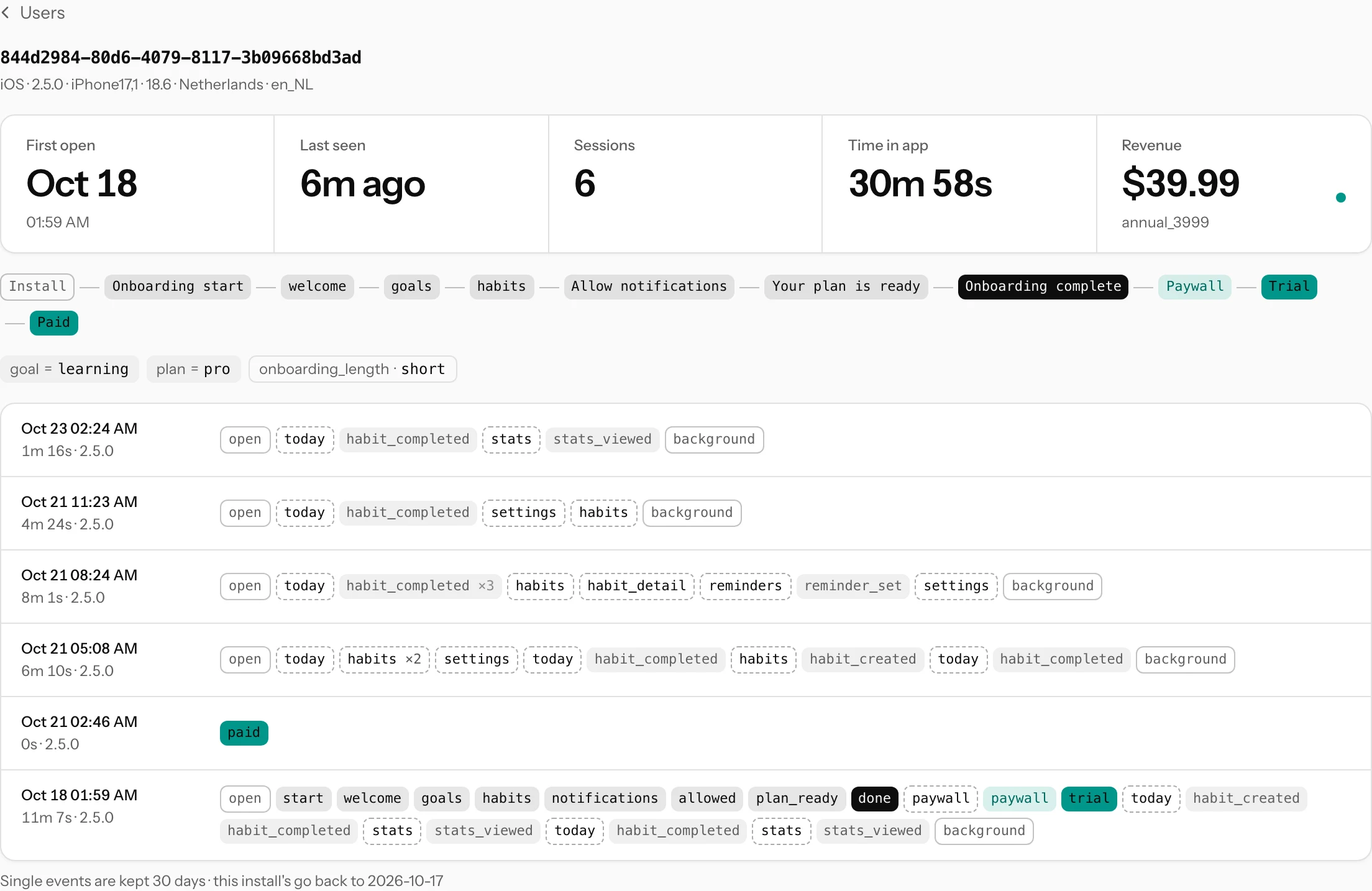
Single events are kept for 30 days, so a timeline goes back at most that far; the line under it says where this install's history starts. The panels, stages, user properties and revenue on top are kept for as long as the install is.
Asking your AI assistant
A connected AI assistant can find an install by its id or your user id and read its timeline, which is handy when a support email arrives: paste it in and ask what the person did before it happened. The assistant can search by your user id, but its answers only say whether an install has one, never the id itself.
Privacy and deleting a user's data
The timeline holds what your app sent: the random install id, the country, the device details and the events with their props. It never holds an IP address or an advertising id, and props, user properties and user ids that look like personal data are dropped on arrival.
To delete one person's data, copy the install id or user id from their page and paste it into Delete a user's data on the app's Setup tab. Everything stored for that install goes, including its timeline, its summary and its user properties, and it disappears from the Users tab. When your app calls erase() itself, the same happens and the app starts a new install id. Purchases stay in your revenue totals, without the person's user id, install id or subscription id. More in the setup guide and the privacy policy.