DocsFeatures
Setting up app analytics
Turn on app analytics, add the events with an AI prompt or copy-paste code, send screens, sessions and user properties, check Live, fill in privacy labels.
This guide takes an app from nothing to working analytics, from the onboarding funnel to screens, sessions and user properties; app analytics explains the tabs once events arrive.
Turn it on
Open Analytics in the top navigation. Your own apps that do not run analytics yet are listed under Not set up yet; click Set up next to one, or use Set up another app to find any app you track. You land on the app's Setup tab, which holds everything below. Until the first event arrives, its top row shows the three steps to a working funnel: the app key, adding it with your AI assistant and the first event in Live. Parts you rarely need (standard events, privacy labels, deleting a user's data, turning analytics off) are folded into one line each; click one to open it.
The App key
Every app gets one App key (it starts with fk_). It is safe to ship inside your app: it can send events, never read them. It is the same key the app uses for in-app feedback, so an app with both needs it only once; turning analytics on for an app without feedback creates its feedback inbox too. That inbox's hosted feedback form is live at once, but nothing reaches you until someone opens it or the app sends feedback.
Rotate issues a new key. The old one keeps working for 7 days, so builds already in your users' hands have time to update. The App Store, Mac App Store and Google Play versions of an app are separate apps here, each with its own key.
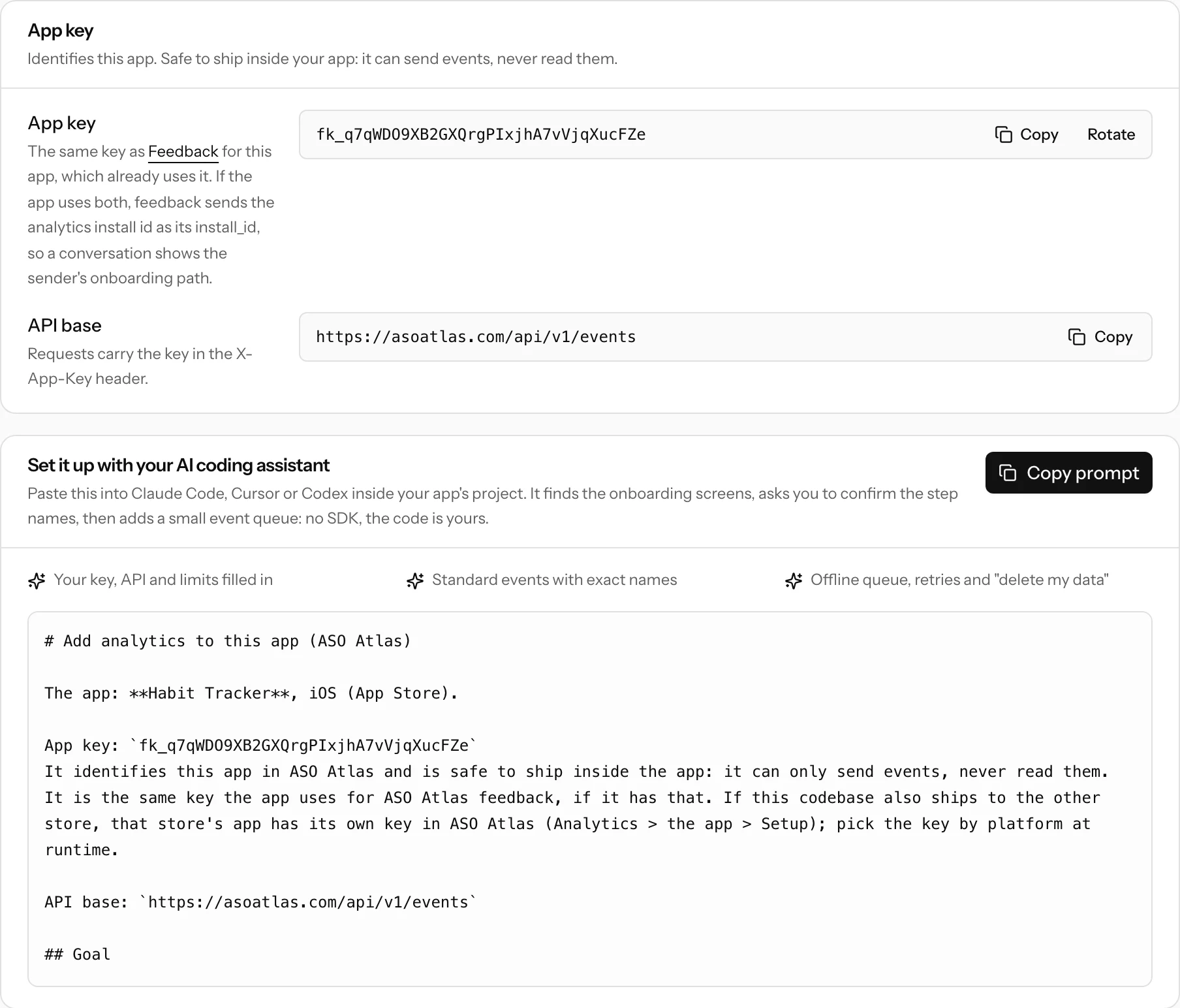
Let your AI assistant add it
The quickest path is the prompt card. Copy prompt and paste it into Claude Code, Cursor or Codex inside your app's project. The assistant lists your onboarding screens with the step names it proposes, the app's screens with their keys, and the 5 to 15 feature events worth counting, and waits for your answer. Then it adds one small event queue (no SDK, the code is yours) that sends the standard events below, your feature events and user properties, with retries, offline storage, "delete my data" and the hand-off to your payment provider. A connected AI assistant can fetch the same prompt itself.
Or write it yourself
Under Or write it yourself you get a complete event queue for Swift (iOS and macOS), Kotlin, Flutter (needs http and shared_preferences), React Native (needs @react-native-async-storage/async-storage) and a curl example, each with your key filled in. Every version:
- keeps a random install id (in
UserDefaultsor app storage, not the Keychain, so a reinstall is a new install) and sendsapp_openon launch and on return to the foreground; - sends
app_backgroundwhen the app goes to the background (on a Mac, when another app becomes active) and sends the queue right away; - stores events on disk, sends them in batches every 30 seconds and when the app goes to the background, retries with backoff, and stops while the server says so (sampling, the monthly cap, a paused app, or an unknown key, which pauses it for a day).
It offers track, screen, setUserId, setUserProperty, setExperiment and erase. In the Kotlin, Flutter and React Native versions, lines marked EDIT need a look (the package name or where the app version comes from). A Mac App Store app gets no Kotlin version, and as a sandboxed app it needs the Outgoing Connections (Client) capability to reach the API.
Standard events
These names have a fixed meaning, so the Funnels, Retention, Activity and Revenue tabs need no setup. Send them exactly as written:
| Event | When | Props |
|---|---|---|
app_open |
Every launch and return to the foreground; the first is the install | none |
app_background |
The app goes to the background; ends the session | none |
screen_view |
Each screen appears | screen (required), previous |
onboarding_start |
The first onboarding screen appears | none |
onboarding_step |
Each onboarding screen appears | step (required), index |
onboarding_complete |
The user finishes onboarding | none |
onboarding_skip |
The user leaves onboarding with a skip button | step |
signup |
An account is created | method |
permission_result |
The user answers a system permission prompt | permission, granted |
paywall_view |
A paywall appears | paywall, placement |
paywall_close |
A paywall is dismissed without buying | paywall |
trial_start |
A free trial starts | product |
purchase |
The user pays (not for a free trial) | product, price, currency |
Step keys are short and stable (welcome, goals), never translated or changed with the copy, because the funnel groups by them; index is the screen's position. The Onboarding steps card renames, reorders or hides steps without touching your code. An app can have up to 50 steps and 100 event names; anything outside the standard set is a custom event, counted in the Events tab. A step key past the 50th is still stored but gets no funnel column, and Live says so.
Feature events are your own names for the actions that make the app worth keeping: habit_created, entry_logged, photo_exported. Use snake_case with a verb in the past tense, and pick the 5 to 15 things a happy user repeats rather than every tap. They feed the Events tab, adoption, retention, segments, your own funnels and alerts.
Screens
screen(name) sends screen_view with a screen key each time a screen appears, adds previous (the screen before it) and skips the same screen twice in a row, since a re-render is not a new view. The key is short, stable and snake_case (home, habit_detail, settings): never the title the user sees, never translated, never an id or anything the user typed (habit_detail, not habit_4821). Hook it where your app already knows the current screen, such as a navigation observer or the screen's appear callback. A screen_view without screen is rejected as missing_screen. Screens feed the Activity tab, Paths and the timelines.
Sessions
A session starts with app_open, or with any event more than 30 minutes after the previous one, and ends with app_background or after those 30 minutes without events. The code sends app_background from the platform's lifecycle hook and forgets the last screen, so the screen the app comes back to counts as a new view. Without app_background, sessions only end after 30 minutes and look longer than they are; see Activity.
User properties
User properties describe the install and segment every report: the plan, the app language, a trait like the goal picked in onboarding. Call setUserProperty("plan", "pro") when one changes (after sign-in, a purchase, a settings change), and setUserProperty("plan", null) (nil in Swift) to remove it. The code keeps them on disk like the user id and sends the whole current set with every batch as user_props, so the server always holds the latest.
- Up to 10 keys per install,
snake_caselike prop keys; a key past the 10th is not taken. - Each value is a string of up to 100 characters (a longer one is cut), a number or a boolean;
nullremoves the key. - They are stored only with accepted events, so a removed key travels as
nulluntil a batch is accepted. - Never personal data: no names, emails, ages, birthdays, locations or anything the user typed. A key that looks like personal data or a value containing an email address is dropped, and the response carries the warning
user_prop_dropped(Live names the key, never the value). Auser_propsthat is not an object is dropped whole withuser_props_dropped; the events in the batch still land. - Debug builds never change them, and
erase()clears them.
Experiments: once an install knows its A/B variant, call setExperiment("onboarding_v2", "b") (in Swift, setExperiment("onboarding_v2", variant: "b")). An install keeps the first variant it reports.
Props hold no personal data either: no names, emails, locations or text the user typed. Keys that look like personal data, values containing an email address and a user_id that looks like an email are dropped on arrival.
Check it works in Live
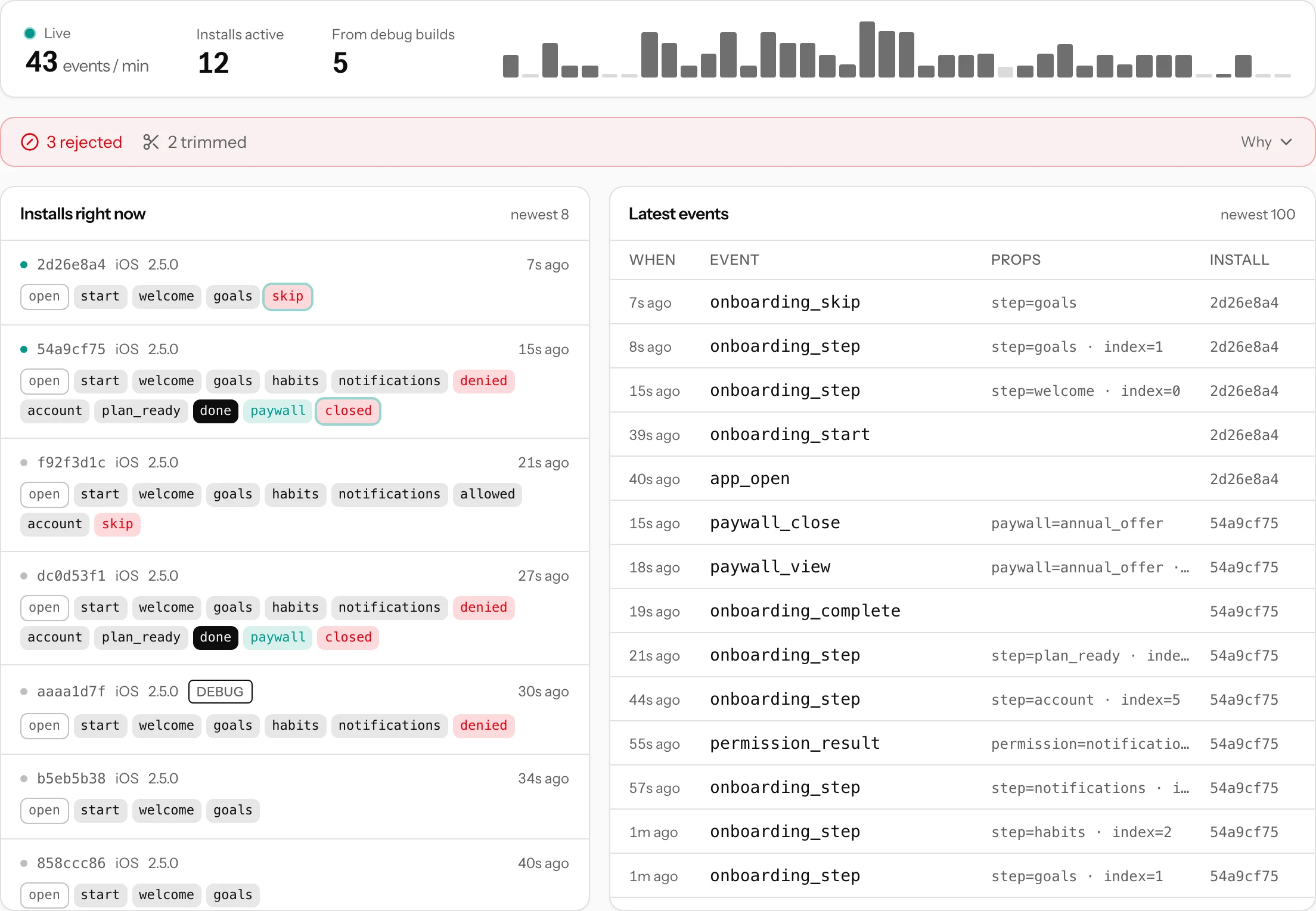
Run a debug build and walk through the onboarding. Debug builds send "debug": true: their events appear in Live within seconds with a debug badge, cost nothing and never count in the other tabs (up to 2,000 a day per app). A step key that only a debug build has sent stays out of the funnel and the step editor until a release build sends it, so test runs never add steps. Live opens on a pulse of the last few minutes (events per minute, installs active, debug events), then the installs moving through the app, one row of steps each, next to the raw event stream. If anything was turned away or trimmed, a red line above them counts it; Why lists each one with the reason, such as a step without its step prop, a screen_view without screen, a camelCase prop key or a dropped user property. Walk through a few screens and send the app to the background: screen_view with your screen keys and app_background should appear too.
Collection and sampling
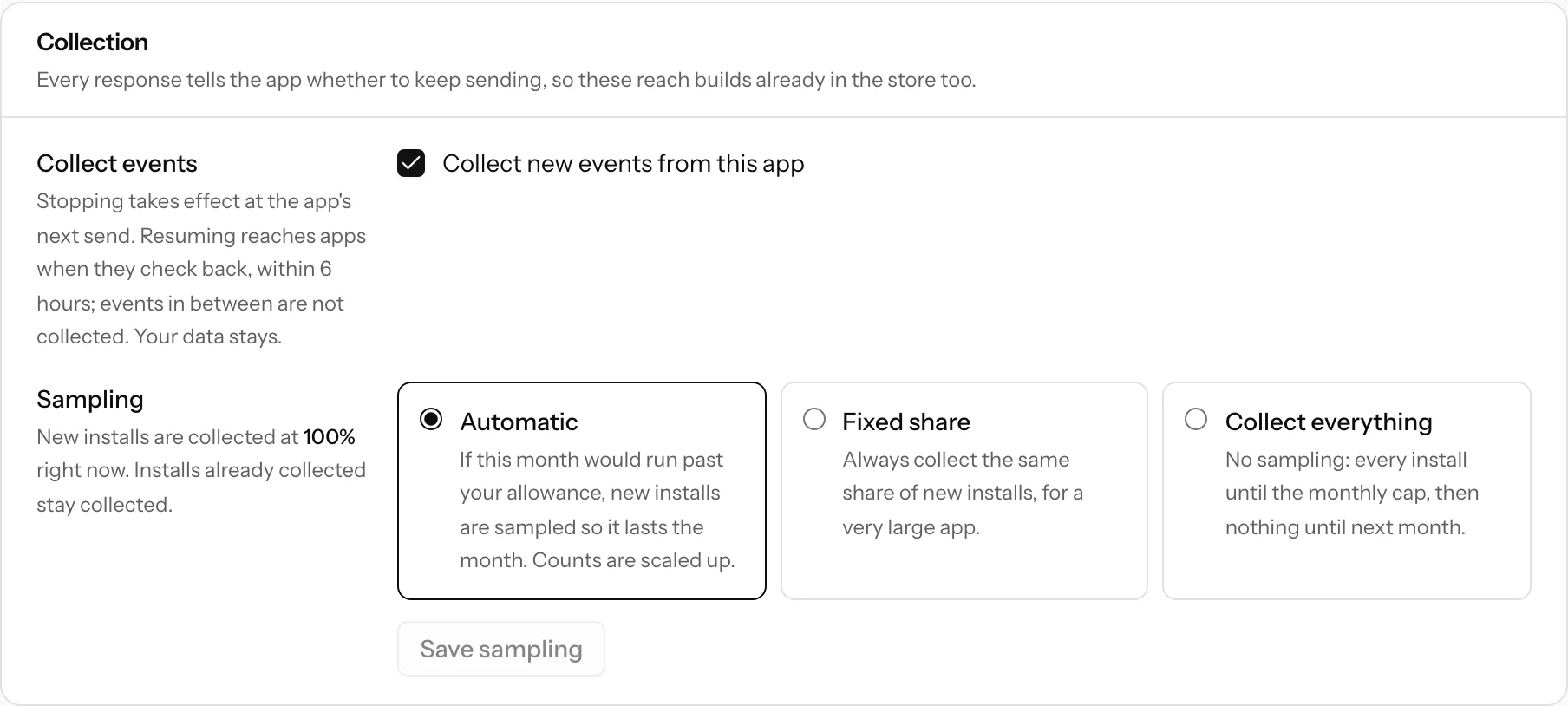
The Collection card pauses an app or changes how it samples. Every response tells the app whether to keep sending, so changes reach builds already in the store: stopping takes effect at the app's next send, and resuming within 6 hours, when paused apps check back.
- Automatic (the default): if this month would run past your allowance, new installs are sampled so it lasts the month.
- Fixed share: always collect the same share of new installs, for a very large app.
- Collect everything: every install until the monthly cap, then nothing until next month.
Installs already collected always stay collected. Limits and packs are explained in app analytics.
Privacy labels
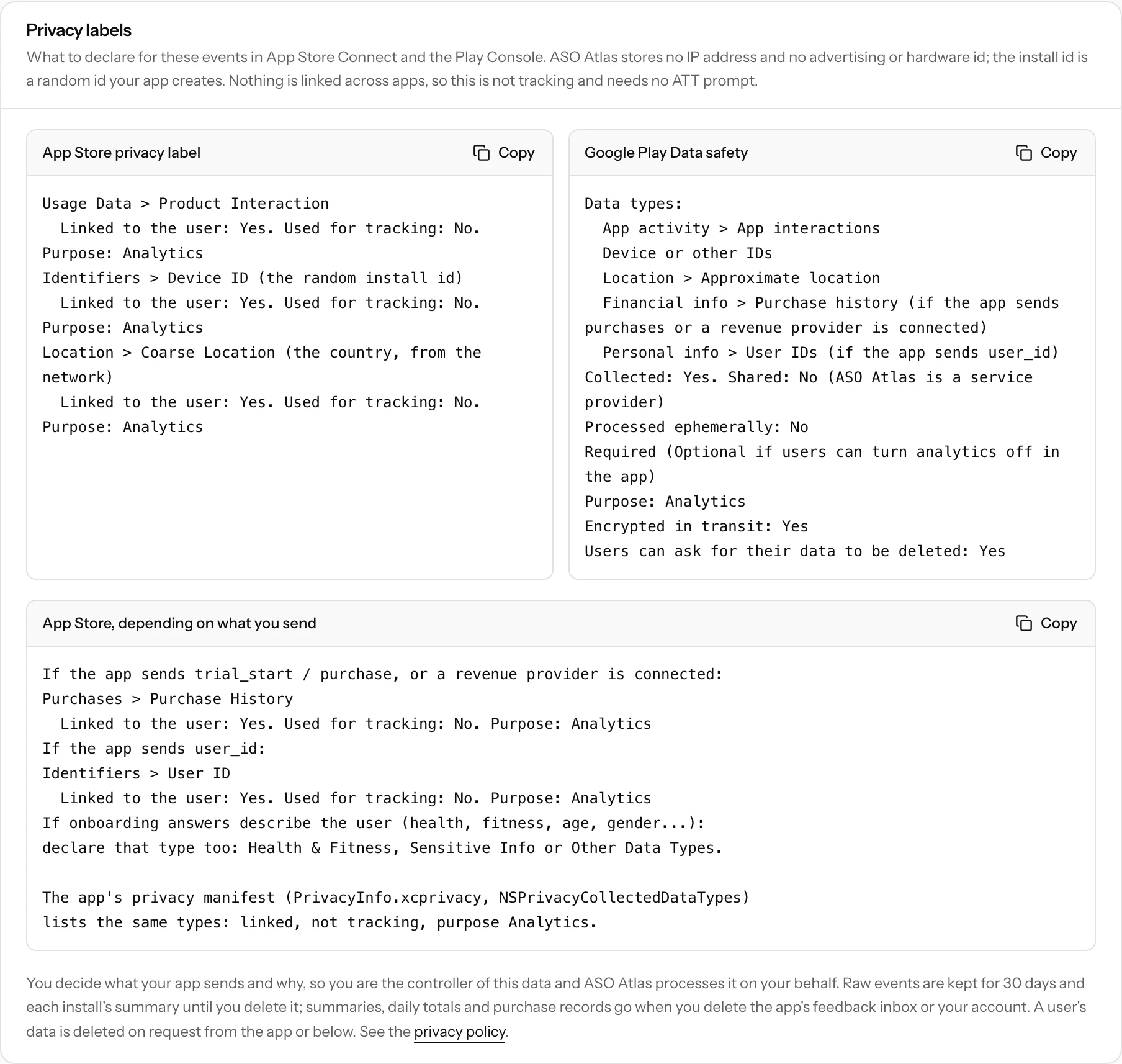
Open Privacy labels near the bottom of the Setup tab: the declarations are ready to copy. Nothing is linked across apps and no advertising or hardware id is used, so this is not tracking and needs no App Tracking Transparency prompt, but the install id, the country and the events belong to a device and are declared as linked to the user:
- App Store: Usage Data > Product Interaction, Identifiers > Device ID (the install id) and Location > Coarse Location (the country, from the network): linked to the user, not used for tracking, purpose Analytics. Add Purchases > Purchase History if you send
trial_startorpurchaseor connect a revenue provider, Identifiers > User ID if you senduser_id, and the matching type if onboarding answers describe the user (health, fitness, age, gender). Declare the same types in the app's privacy manifest (PrivacyInfo.xcprivacy), linked, not tracking, purpose Analytics. - Google Play Data safety: App activity > App interactions, Device or other IDs and Location > Approximate location, plus Financial info > Purchase history if the app sends purchases or a revenue provider is connected, and Personal info > User IDs if it sends
user_id. Collected, not shared (ASO Atlas is a service provider), not processed ephemerally, purpose Analytics, encrypted in transit, deletable on request.
Deleting a user's data
When your app deletes a user's data, its erase() asks ASO Atlas to delete everything stored for that install and starts a new install id. For a request that reaches you instead, Delete a user's data on the Setup tab takes your app's user id or an install id. Your AI assistant can do the same. Purchases stay in your revenue totals, without the person's user id, installation id or subscription id. Raw events are kept for 30 days and each install's summary until you delete it; summaries, daily totals and purchase records go when you delete the app's feedback inbox or your account. The privacy policy explains this to your users.
The API in short
The code and the prompt use one endpoint, POST https://asoatlas.com/api/v1/events, with your key in the X-App-Key header and Content-Type: application/json. A request carries one install's batch of up to 100 events (64 KB at most), with the install's user properties in user_props. It answers 202 with accepted, any rejected events, any warnings and collect; when collect is false, the app waits until recheck_at before sending again. 404 means an unknown key (the code pauses for a day), 413 and 422 mean the batch can never succeed, and 429 and 503 come with Retry-After. DELETE /api/v1/events/install with an install_id deletes that install's data. The AI prompt holds the full contract.
Turning it off
Turn analytics off stops collection and takes the app off the Analytics list. Your data is kept, so turning it back on shows the same history, while raw events still age out after 30 days; feedback is not affected. Revenue webhooks are acknowledged but not recorded while it is off. As long as data is kept, the app's Setup tab stays open (the Analytics list links it) with Delete a user's data, Turn analytics on and any alert rules you made (kept, but not checked while it is off). To stop for a while, pause it under Collection instead.